
Purchases
Special Purchase Master
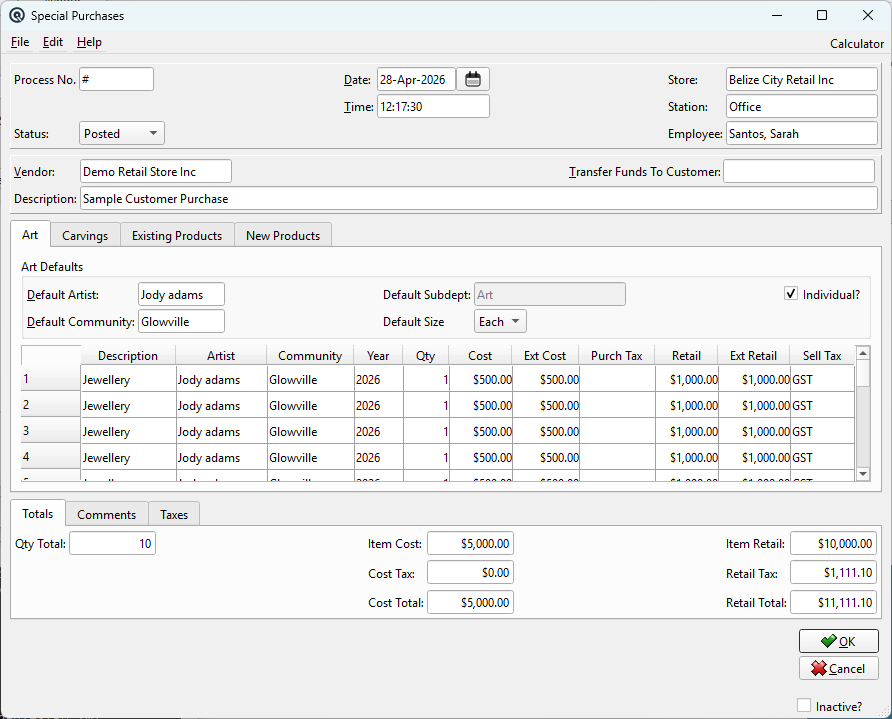
The Special Purchase Master is a configurable buying workstation designed for businesses that purchase unique, one-of-a-kind, or artisanal products directly from individual producers. Unlike a standard vendor invoice that receives known catalog items, this screen lets you buy items that may not yet exist in your inventory — creating the items, setting costs and retail prices, generating labels, and recording the vendor payment all in a single transaction. Access from Purchasing › Special Purchase List.
Who Is This For?
|
This screen was built for businesses where buying is not just selecting from a supplier catalog — it is meeting a person, evaluating their work, negotiating a price, and taking possession on the spot. Examples:
|
Configuration
|
This screen requires configuration before first use. All settings are maintained in Purchases › Setup › Special Purchase Setup:
Without a properly configured Special Purchase setup, the screen will display an error and close. |
Header Fields
Process No.Auto-assigned transaction number. Uses the standard GltxFrame (Date, Store, Station, Employee are also captured). VendorThe person or business you are purchasing goods from — the artist, carver, farmer, estate, or individual bringing items to sell. This field is required.
Transfer Funds To CustomerOptional. When a seller is both a vendor and a customer (common in co-ops, consignment shops, and Indigenous art galleries), this field directs the purchase payment to their customer account instead of leaving it as an A/P balance.
DescriptionA description of this purchase batch (up to 40 characters). E.g., "Spring Art Show Purchase", "Estate Buy - March 2026". TypeThe special purchase type controls how the items are received into stock. Vendor Invoice creates a vendor invoice; Consign In creates a consignment-in. The type also determines whether a card transfer to the seller is allowed. Configure types on the Types tab of Purchases › Setup › Special Purchase Setup. ReferenceReference string for cross-referencing or notes (optional). StatusTransaction status. Controls posting and visibility in lists. DatePosting date for the transaction. Defaults to today. TimeTime of posting. Auto-filled from the system clock. Work DateWork date for the transaction (may differ from posting date). ShiftShift assignment for labour or shift-based reporting. StoreStore where the transaction is posted. Defaults to current store. StationWorkstation or terminal where the transaction was entered. EmployeeEmployee who created or is responsible for the transaction. MemoFree-form memo or notes attached to the transaction. |
Art Tab
|
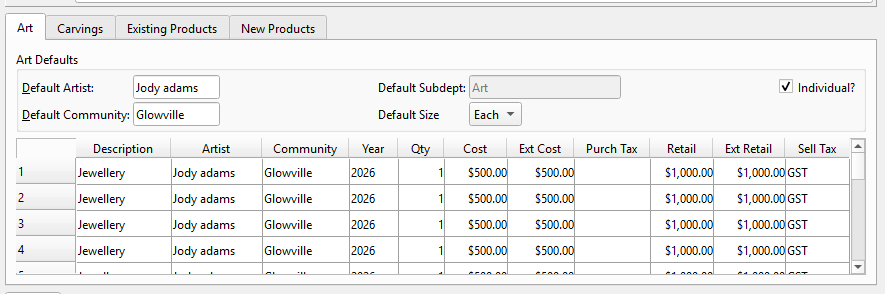
For purchasing art pieces (paintings, prints, sculptures, jewellery, wall hangings, etc.). Each row becomes a new inventory item on save. Art DefaultsDefault ArtistPre-fills the Artist column for every new row. Set this once when buying multiple pieces from the same artist. Default CommunityPre-fills the Community column. Loaded from config, editable per-purchase. Default SubdeptThe subdepartment new art items are created in. May be locked by configuration. Default SizeThe item size to use (loaded from the subdepartment's size list). Individual?When checked, each item is created as a unique inventory item (qty = 1). When unchecked, multiple identical items can be grouped. Art Items Table
|
Carvings Tab
|
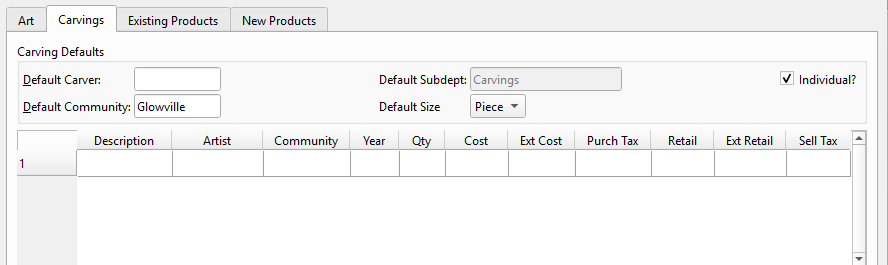
Identical structure to the Art tab but configured for carvings (soapstone, wood, bone). Carving DefaultsDefault CarverPre-fills the Artist column for carvings. Default CommunitySeparate from art community (a carver may be from a different community than the artist). Default SubdeptSeparate subdepartment for carving items (e.g., "Carvings" vs "Art"). Default SizeLoaded from the carving subdepartment. Individual?Same behavior as the Art tab. The carving description dropdown is loaded from the config's carvingDescription list (e.g., "Bear", "Inukshuk", "Dancing Bear", "Owl", "Sedna"). Carving Items TableThe same 11 columns apply: Description, Artist, Community, Year, Qty, Cost, Ext Cost, Purch Tax, Retail, Ext Retail, Sell Tax. |
Existing Products Tab
|
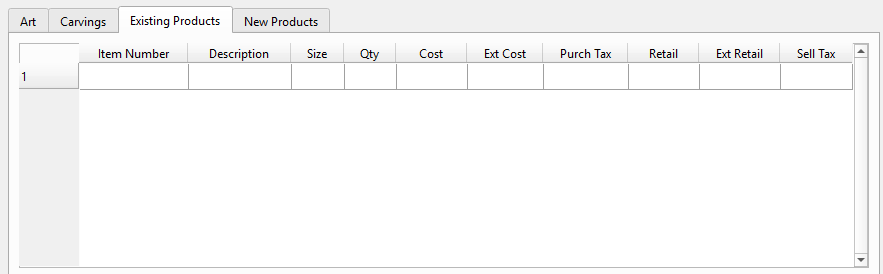
For purchasing items that already exist in your inventory. Use this tab when buying more stock of known products — for example, a pawn shop buying back an item they previously sold, or a gallery restocking prints. Existing Products Table
|
New Products Tab
|
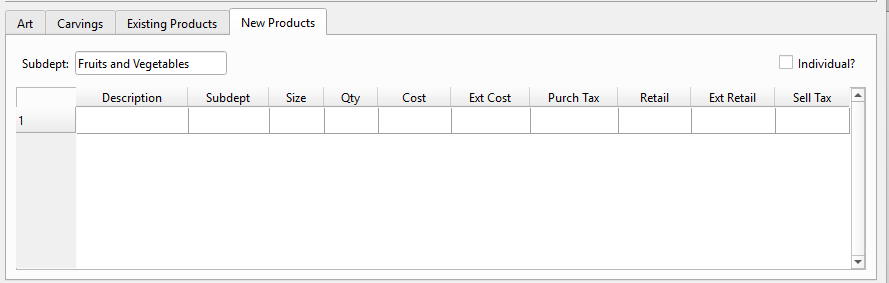
For purchasing items that do not yet exist in inventory, but are not specifically art or carvings. Ideal for pawn shops, antique dealers, or farmers' market buyers where each item is unique and described on the spot. Default SubdeptChoose the subdepartment for this item. May be defaulted and/or locked by config. Individual?When checked, each new product is created as a unique inventory item. New Products Table
|
Table Cell Fields
|
The following fields appear as inline cell editors in the Art, Carving, New Products, and Existing Products tables. Click into a cell to activate the editor. DescriptionItem description. In Art and Carving tabs, this is a dropdown of pre-configured descriptions (with optional free-text). In Products tabs, this shows the item's description from inventory. ArtistThe artist or maker's name. Stored as item Extra Data for reporting and traceability. The Default Artist field above the table pre-fills this for every new row. CommunityThe artist's community or place of origin. Stored as item Extra Data. Pre-filled from the Default Community field above the table. YearThe year the piece was created. Stored as item Extra Data. Defaults to the current year. QtyQuantity of this item. If Individual? is checked, items with qty > 1 are automatically split into separate inventory items on save (each with qty = 1). CostThe per-unit purchase cost — what you are paying the vendor for this item. Ext CostExtended cost, auto-calculated as Qty × Cost. RetailThe per-unit selling price you intend to charge customers. Ext RetailExtended retail, auto-calculated as Qty × Retail. Size (Existing Products)Item size selector for the Existing Products tab. Dropdown populated from the item's available sizes. Size (New Products)Item size selector for the New Products tab. Dropdown populated from the selected subdepartment's size list. |
Totals Tab

|
Read-only summary of all items across all four tabs. Updated in real time as you add items: Qty TotalTotal quantity of all items across all tabs. Item CostTotal cost before tax (what you owe the vendor). Cost TaxTotal purchase tax on cost. Cost TotalItem Cost + Cost Tax. The total amount payable to the vendor. Item RetailTotal expected retail revenue before tax. Retail TaxTotal sales tax at retail. Retail TotalItem Retail + Retail Tax. What customers will pay when the items sell. |
Comments Tab

CommentFree-text area for notes and special instructions. Examples: "Artist will deliver framing next week", "Items are on consignment — pay after sale", "Pawn ticket #4521 — 30-day hold period". |
Taxes Tab

What Happens On Save
|
When you click OK, the system performs the following in a single batch operation: 1. Item Creation — For Art, Carvings, and New Product rows, new inventory items are created with auto-generated item numbers (using the configured prefix, e.g., "SP-1000001"). Extra data (Artist, Community, Year) is attached to each item. |