
Inventory
Production Batch
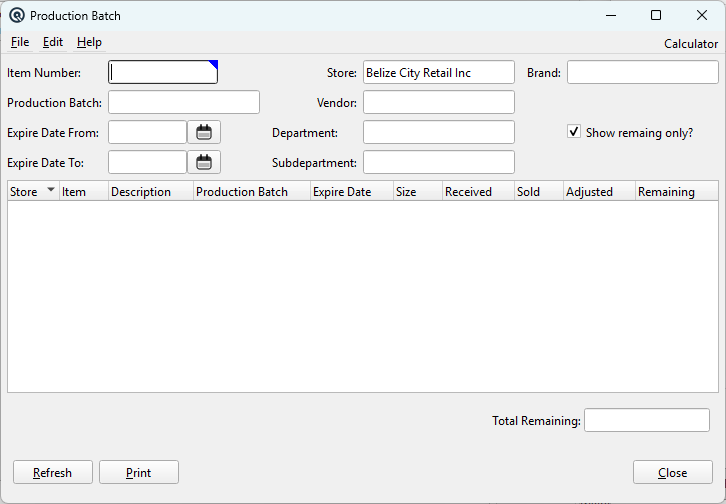
The Production Batch screen is a lot and expiry tracking inquiry that shows the lifecycle of every production batch (lot number) in your inventory. It answers the critical question: "For a given batch/lot, how much did we receive, how much was sold, how much was adjusted, and how much remains?" — along with the expiry date. This is essential for industries where expiry tracking is mandatory, such as pharmacies, food retailers, and chemical distributors. Access from Inventory › Production Batch.
Why This Screen Matters
|
Every time inventory is received with a lot/batch number and an expiry date, Quasar records it in the expiry tracking system. As units are sold, adjusted, or returned, the remaining quantity for each batch is updated. This screen lets you query that data to answer critical business questions:
|
Filter Fields
|
All filters are optional. Leave blank to show everything, or combine filters to narrow results: Item NumberFilter to a specific item. Useful when you want to see all lots/batches for one product (e.g., "show me all batches of Amoxicillin 500mg"). Production BatchFilter to a specific lot/batch number. Use this for recalls or traceability — enter the manufacturer's batch code and instantly see which stores have stock from that lot. Expire Date FromShow only batches expiring on or after this date. Use together with Expire Date To for a date range, or alone to see "everything expiring from this date onward". Expire Date ToShow only batches expiring on or before this date. Set this to a near-future date (e.g., 30, 60, or 90 days from now) to find stock that will expire soon and needs attention. StoreFilter to a specific store location. Defaults to the current store. Useful for multi-store operations where each location needs its own expiry review. VendorFilter to items supplied by a specific vendor. Useful for vendor-specific recall investigations or reviewing all lots from a particular supplier. DepartmentFilter to items in a specific department (e.g., "Pharmaceuticals", "Dairy", "Frozen Foods"). SubdepartmentFilter to a specific subdepartment for more granular review (e.g., "Antibiotics" within "Pharmaceuticals"). BrandFilter to a specific brand. Useful when a brand issues a quality notice affecting multiple products. Show Remaining Only?When checked (the default), only batches with remaining stock on-hand are shown. Uncheck to see the full history including batches that have been completely sold or adjusted out. Keep this checked for daily expiry management; uncheck for audit and traceability investigations. |
Results List
|
The sortable list shows one row per batch/lot per item per store. Click any column header to sort. Columns:
Total RemainingShown below the list. The sum of all Remaining values for the current filter. Gives you a quick total of all stock matching your query. |
Actions
RefreshRe-runs the query with the current filter settings. The list also auto-refreshes when you change any filter field. Generates a printable report of the current list. The report title includes all active filters (store, department, vendor, item, date range) for clear audit documentation. CloseCloses the inquiry screen. |
Typical Workflows
Weekly Pharmacy Expiry Review1. Open Production Batch. Store is pre-set to the current pharmacy location. Manufacturer Recall Investigation1. Open Production Batch. Clear the Store filter to search all locations. Vendor Quality Review1. Set the Vendor filter to the supplier under review. |
Related Screens
| Item Master | Vendor Invoice | Inventory Adjustment |
| Quasar Accounting 7.1 • © Linux Canada Inc. • Table of Contents |