
Customers & Sales
Aged Receivables
The Aged Receivables screen analyses outstanding customer balances aged by overdue period. It operates in two distinct modes: All Customers (summary view) and One Customer (transaction detail view). Each mode has two tabs — Debits (amounts owed to you) and Credits (overpayments or return credits). Access from Sales › Aged Receivables.
| Two Views, Same Screen: The radio buttons at top switch between All Customers (one row per customer, summary totals) and One Customer (one row per transaction, individual invoice/payment detail). Double-clicking a customer row in All Customers mode automatically switches to One Customer mode for that customer. |
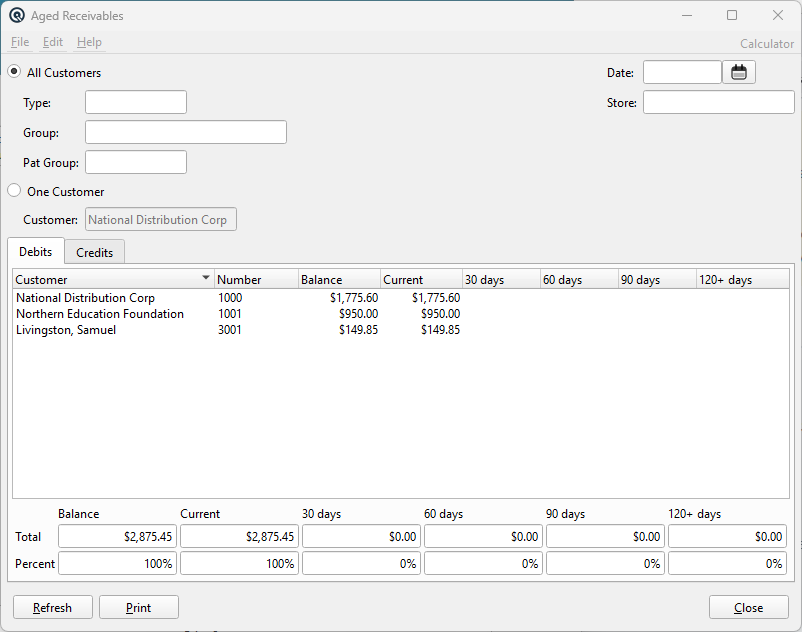
Filters
All CustomersSummary view showing one row per customer. Enables the Type, Group, and Pat Group filters. Disables the Customer field. One CustomerTransaction detail view for a single customer. Enables the Customer lookup. Disables the Type, Group, and Pat Group filters. DateThe "as at" date for the aging calculation. All transactions are aged relative to this date. If left blank, defaults to today. Use a past date to view what the aging looked like on a specific historical date — payments posted after this date are excluded from the calculation. StoreOptional store filter. When set, only transactions from this store are included. Leave blank for all stores. |
All Customers Mode — Filters
|
These filters are only active when "All Customers" is selected: TypeFilter by customer account type (e.g. Retail, Wholesale, Government). Only customers of the selected type are included. GroupFilter by customer group. Only customers belonging to the selected group are included. Pat GroupFilter by patronage group. Only customers belonging to the selected patronage group are included. |
One Customer Mode — Filter
|
This filter is only active when "One Customer" is selected: CustomerCustomer lookup. Select the specific customer to analyse. All unpaid transactions for this customer are loaded. |
Debits & Credits Tabs
The results are split into two tabs: Debits (amounts customers owe) and Credits (overpayments or return credits). Click a tab to switch views.
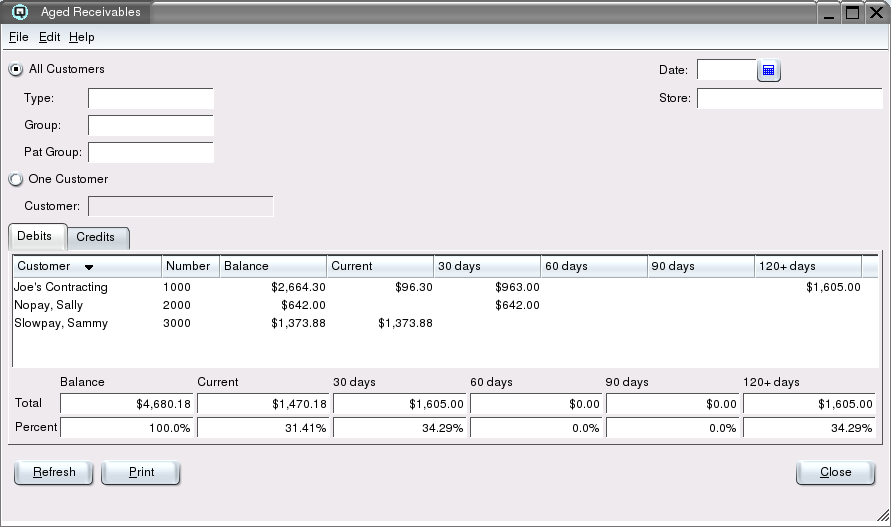
▶ All Customers View
|
Shows one row per customer with their total outstanding balance broken down by aging period. Click any column header to sort. Results ListThe main list view showing customers or transactions depending on the selected mode. Double-click a row to drill down or open the source transaction. Debits TabCustomers who owe money (positive balances). Each row is a customer summary:
Credits TabCustomers with a credit balance (overpayments, unapplied return credits). Same columns as Debits but showing negative balances. Credits that partially offset debits in older periods are cascaded forward (120+ → 90 → 60 → 30 → Current) so that the oldest amounts are reduced first. Double-Click ActionDouble-clicking a customer row switches to One Customer mode for that customer and automatically refreshes to show their individual transactions. |
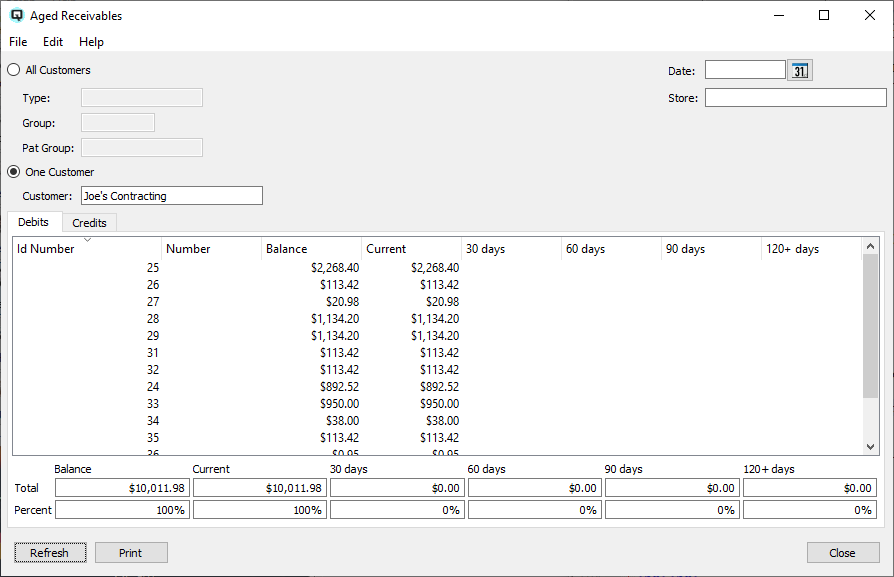
▶ One Customer View
|
Shows one row per unpaid transaction for the selected customer. The first column changes from "Customer" to "Id Number" (the transaction number). Debits TabIndividual unpaid invoices and other debit transactions:
Credits TabIndividual unallocated credit transactions (returns, overpayments). Same columns showing the credit amount in the appropriate aging bucket. Double-Click ActionDouble-clicking a transaction row opens the transaction in its master screen (e.g. Invoice, Customer Return, Receipt) for viewing or editing. |
Totals Area (Both Modes)
|
Below each tab is a summary area with two rows:
Example: If Total Balance is $10,000 and 30 days is $3,000, the 30 days Percent shows 30.00%. |
Aging Logic
|
Aging is calculated based on the due date of each transaction relative to the "as at" date:
Credit Cascade: When a customer has both debits and credits, credits are initially placed in the 120+ bucket. If 120+ goes negative, the excess cascades into 90 days, then 60, then 30, then Current. This ensures credits reduce the oldest outstanding amounts first. Historical "As At" Date: When a date is entered, the system excludes payments posted after that date from the paid totals. This lets you reconstruct what the aging report looked like on any past date. |
Buttons
RefreshReloads all data based on the current filter settings. You must click Refresh after changing filters to update the display. Prints the currently visible tab (Debits or Credits) as a report. The printed report includes all rows from the tab plus footer totals for each aging bucket. The report title includes the selected filters (customer type, group, customer name, as-at date). CloseCloses the Aged Receivables window. |
Workflow
|
Review all customers: Investigate one customer: |
Related Screens
| Customer Master | Customer Payment | Invoice | Service Charges |
| Quasar Accounting 7.1 • © Linux Canada Inc. • Table of Contents |