
Pricing & Labels
Promo Batch Master
The Promo Batch Master creates time-limited promotional pricing. Unlike price batches (which permanently change prices), promo batches set temporary prices that are active only during the configured date/time window and automatically revert when the promotion expires. Promos can be further restricted by day of week, store, customer group, or department. Access from Inventory › Promo Batch Master or from the Promo Batch List.
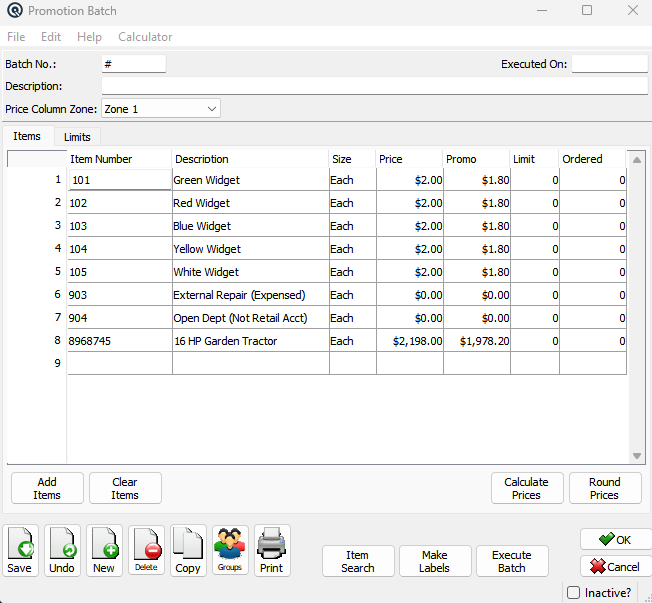
Header Fields
Batch No.Auto-assigned batch number. Executed OnRead-only. Shows the date the batch was executed. Blank until execution. DescriptionFree-text description (e.g., "Summer Sale 2026", "Weekend Meat Special", "Back to School 20% Off"). Price Column ZoneThe price zone used to display the regular Price column. Changes based on the stores allowed by the Limits tab. When you change zones, items not stocked in valid stores are automatically removed with a count of deleted items. ReferenceReference string for cross-referencing or notes (optional). StatusTransaction status. Controls posting and visibility in lists. DatePosting date for the transaction. Defaults to today. TimeTime of posting. Auto-filled from the system clock. Work DateWork date for the transaction (may differ from posting date). ShiftShift assignment for labour or shift-based reporting. StoreStore where the transaction is posted. Defaults to current store. StationWorkstation or terminal where the transaction was entered. EmployeeEmployee who created or is responsible for the transaction. MemoFree-form memo or notes attached to the transaction. |
Tabs
|
The screen is organized into two tabs: Items and Limits. Click a tab to switch between editing promotion items and configuring promotion limits. |
Items Tab
|
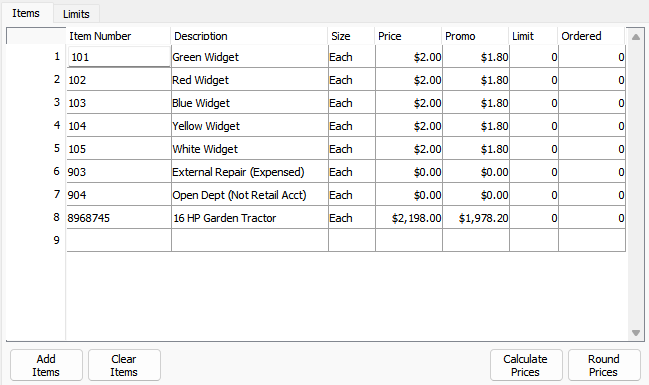
The items table lists all products in the promotion: Items TableItem NumberScan or type an item number. Only sold, stocked items with prices in the zone are accepted. DescriptionRead-only. Auto-filled from the item record. SizeDropdown of selling sizes. Changing the size reloads the regular Price. PriceThe current regular price for this zone/size (read-only). Serves as the "before" comparison. PromoThe promotional price. This is the price the customer sees during the promo period. LimitMaximum quantity per transaction at the promo price (0 or blank = unlimited). Quantities beyond the limit are charged the regular price. OrderedQuantity ordered for the promotion. Useful for tracking promotional stock commitments. |
Items Tab — Power Buttons
Add ItemsOpens a bulk selection dialog to load items by department, subdepartment, vendor, or group. Adds hundreds of items at once rather than scanning them individually. Reports the count of items added. 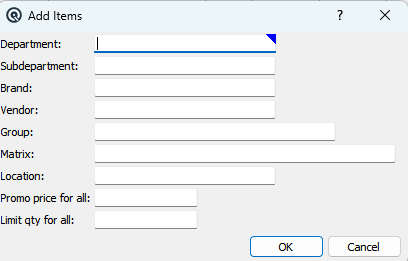 Clear ItemsRemoves all items from the batch (with confirmation). Calculate PricesApplies a formula to every item's Promo price at once. Three calculation methods: 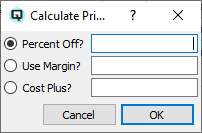
The system warns you if any calculated promo price is higher than the regular price, which would mean the "promotion" is actually more expensive than the regular price. Round PricesApplies the zone's rounding rules to all Promo prices. Reports the number of prices rounded. ProgressShown during price calculations. Displays how many items have been processed and lets you cancel the operation. |
Limits Tab
|
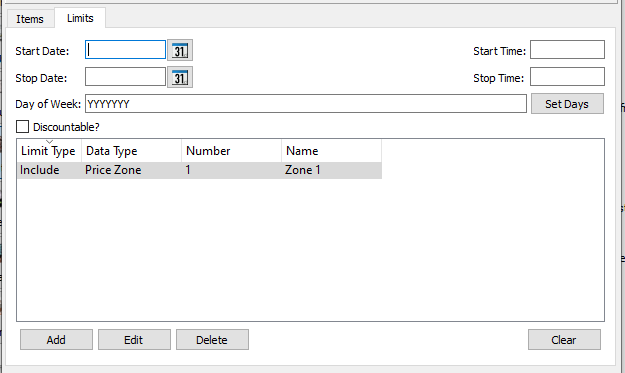
The Limits tab controls when, where, and for whom the promotion is active: Start DateThe date the promotion begins. Prices automatically apply at the start date. No manual intervention required. Stop DateThe date the promotion ends. Prices automatically revert after the stop date. Start TimeOptional daily start time for the promotion. Use for time-limited promos like "Happy Hour starts at 4 PM". Stop TimeOptional daily end time. Use together with Start Time for promos like "Early Bird before 10 AM" or "Happy Hour 4–6 PM". Day of Week SelectionRestricts the promo to specific days. Click Set Days to open a dialog with checkboxes for Sunday through Saturday. For example, a "Taco Tuesday" promo active only on Tuesdays, or a "Weekend Sale" active only Friday through Sunday. Set DaysOpens the day-of-week selection dialog to choose which days the promotion is active. Day of WeekDisplays the currently selected days as a seven-character string (Y/N for Sunday through Saturday). 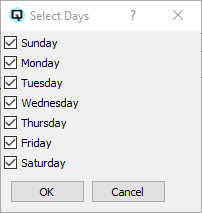 Discountable?Whether the promo price can be further reduced by discounts. Uncheck to prevent stacking discounts on top of promotional pricing. Limits TableInclude/Exclude RulesThe limits list defines which stores, customers, and items are eligible for the promotion. Each rule is either Include or Exclude and can target:
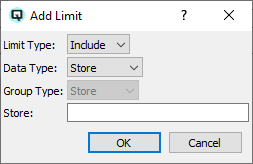 Limit ButtonsManage the include/exclude rules list: AddOpens a dialog to add a new include/exclude rule. EditOpens a dialog to change the selected rule. DeleteRemoves the selected rule after confirmation. ClearRemoves all rules after confirmation. Changing limits recalculates which stores are valid; items not stocked in any valid store are automatically removed. |
Execution Buttons
Item SearchOpens a search dialog to find items in the batch by item number or description. Supports iterative "Next" searching with an option to start from the top or continue from the current position. Essential for large promo batches with hundreds of items. Make LabelsCreates Label Batches for all promo items — one batch per valid store. Shelf Labels get 1 label each; Item Labels get one per unit on-hand. Labels show the promo price so shelf tags reflect the sale. Execute BatchActivates the promotion. The batch is saved with today's date as the Executed On date. After execution: • You are prompted to print a report of the promo pricing. The POS system automatically recognizes the promo pricing during the active date/time/day window without any additional configuration. |
Set Days Dialog
|
Opened from Set Days in the Limits tab. Check the days the promotion should be active and click OK. SundayInclude Sunday in the active days. MondayInclude Monday in the active days. TuesdayInclude Tuesday in the active days. WednesdayInclude Wednesday in the active days. ThursdayInclude Thursday in the active days. FridayInclude Friday in the active days. SaturdayInclude Saturday in the active days. Dialog ButtonsOKApplies the selected days and updates the Day of Week field. CancelCloses the dialog without changing the Day of Week field. |
Item Search Dialog
|
Opened from Item Search. Finds items in the batch by item number or description. Item NumberEnter part of an item number to search for. DescriptionEnter part of an item description to search for. Start search at top?When checked, searching starts from the first row. When unchecked, searching continues from the current row. Dialog ButtonsNextFinds the next matching item in the batch. CancelCloses the search dialog. |
Price Batch vs. Promo Batch
|
Related Screens
| Promo Batch List | Price Batch | Label Batch | Item Master |
| Quasar Accounting 7.1 • © Linux Canada Inc. • Table of Contents |