
More Topics
Print Manager Settings
Controls which printer each kind of document goes to, and how it is printed. Rather than relying on whatever printer Windows happens to default to, you can send invoices to the counter printer, purchase orders to the office laser, and quotes to a PDF writer — each with its own copy count, tray, duplex, and colour settings. Rules are defined per store and per transaction type, with an optional override list for the exceptions. Access from System › Setup › Print Manager Settings.
Rule Scope
|
These two fields decide which documents the settings below apply to. Set them first — everything underneath describes the rule for this store and document type. StoreThe store the rule applies to. Choose (Global Default) to set a rule for every store at once; a rule saved against a named store overrides the global one for that store. This is how a chain can share one set of defaults while letting a single branch print somewhere else. Transaction TypeWhich document the rule governs: Customer Invoice, Customer Return, Customer Quote, Sales Order, or Purchase Order. Each type carries its own printer and page settings, so changing this field loads a different rule. Report TemplateThe report layout used to produce the document. Leave at the default unless you have a custom template for this document type. |
Printer Settings
PrinterThe printer this document goes to. (Use OS Default) hands the choice to the operating system, which is the old behaviour; naming a printer here is what makes the routing predictable across workstations. CopiesHow many copies to print. Useful where a signed customer copy and a file copy are both needed. Paper Source (Tray #)Which paper tray to draw from, by number. Use this for pre-printed stationery or a different paper size kept in a second tray. Leave empty to let the printer decide. Duplex ModeSingle or double-sided printing: Simplex (No Duplex), Auto, Duplex (Long Edge), or Duplex (Short Edge). Long edge binds like a book and suits portrait documents; short edge suits landscape. Color ModeGrayscale / Monochrome or Color. Forcing greyscale on high-volume documents such as invoices is a simple way to control consumable cost. |
Page Settings
Page Orientation(Report Default), Portrait, or Landscape. Report Default uses whatever the template was designed for, which is normally correct; override only when a customised template needs it. Page Scaling(Report Default), Fit Page (Auto Zoom), or 100% (No Scaling). Fit Page shrinks the output to fit the paper, which rescues a wide report; 100% guarantees exact sizing, which matters when printing onto pre-printed forms where the boxes must line up. |
Customer Overrides
|
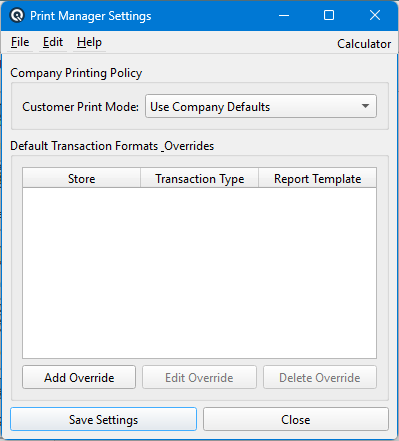
Individual customers can be treated differently from the store rule — for example a customer who is always emailed rather than printed, or one who needs two copies. Customer Print ModeUse Company Defaults applies the rules above to everyone. Use Customer Last Transaction History instead follows how that customer's previous document was handled, so a customer who was emailed last time is emailed again. Add OverrideCreates an exception for one customer. Edit OverrideChanges the selected customer exception. Delete OverrideRemoves the selected exception, returning that customer to the normal rules. |
Actions
Save SettingsSaves the rule for the selected store and transaction type. Settings apply to printing from then on; documents already printed are unaffected. CloseCloses the screen. Unsaved changes to the current rule are discarded. |
Related Screens
| Print Log | Store Master | Customer Master |
| Quasar Accounting 7.1 • © Linux Canada Inc. • Table of Contents |