
Purchases
Auto Order
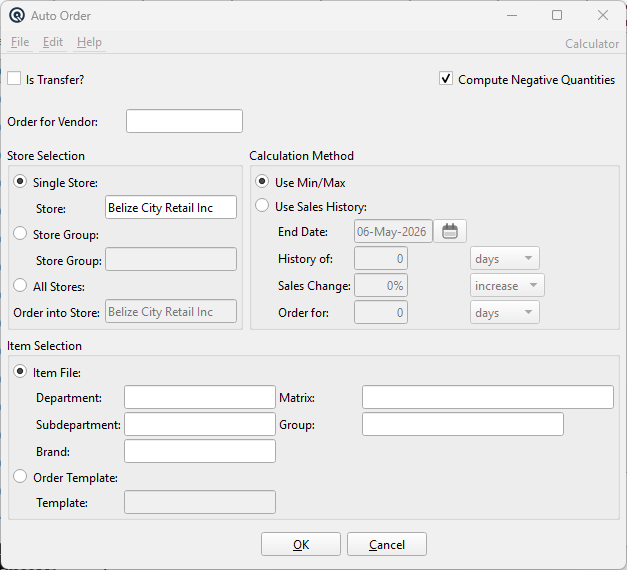
Auto Order is a powerful replenishment engine that automatically generates Purchase Orders or Inter-Store Transfers based on real-time inventory analysis. It supports three store scopes — single store, store group, or all stores — and two calculation methods: Min/Max reorder points and Sales History forecasting. When ordering for multiple stores, all demand is consolidated into a single purchase order received at the designated Order into Store. When the Is Transfer? option is enabled, the engine creates an Item Transfer from a source store instead of a vendor purchase order. Feature-gated to feat_purch. Access from Purchases › Auto Order. Security screen: AutoOrder.
Operating Modes
Is Transfer?Checkbox that switches between Purchase Order mode (unchecked) and Transfer mode (checked). In Transfer mode, the vendor field is replaced by From Store and only Single Store scope is available. Compute Negative?When checked, the engine will order items even if the calculated available quantity is negative (indicating a stockout). When unchecked, negative quantities are treated as zero. VendorThe vendor to whom the purchase order is addressed. Required in Purchase Order mode. The vendor's replacement cost and order multiple are used for pricing and rounding. From StoreThe source store for an inter-store transfer. Required in Transfer mode. The source store must have an AutoTransfer station and employee configured. Purchase Order Mode (default)When Is Transfer? is unchecked, a vendor is required and the engine creates a Purchase Order addressed to that vendor. All three store scopes (Single Store, Store Group, All Stores) are available. Items are selected from the vendor’s catalog, costed using the vendor’s replacement cost, and the resulting order opens in the Purchase Order Master for review before posting. Transfer ModeWhen Is Transfer? is checked, the vendor field is replaced by From Store. The engine creates an Item Transfer from the source store to the destination store. Only Single Store scope is available in transfer mode. The transfer is priced according to the source store’s Price Level setting (Cost, Regular, Level 1–4, or Cost+). The resulting transfer opens in the Item Transfer Master.
|
Store Selection
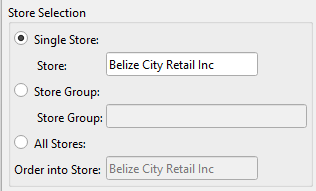
Single StoreRadio button. Orders for a single store. The Order into Store is automatically set to match the selected store. This is the only option available in Transfer Mode. StoreThe store to order for when Single Store is selected. Lookup, defaults to current store. Store GroupRadio button. Orders for all stores in a defined store group. Aggregates demand from every store in the group into one purchase order received at the Order into Store. Not available in Transfer Mode. Store GroupThe store group to order for when Store Group scope is selected. Lookup. All StoresRadio button. Orders for every store in the system. Aggregates demand from all stores into one consolidated purchase order. Not available in Transfer Mode. Order into StoreThe receiving warehouse / store where the generated purchase order is addressed. For multi-store orders, this is the central distribution point. If the order store has surplus stock above its own needs, that surplus is subtracted from the total order quantity. |
Item Selection
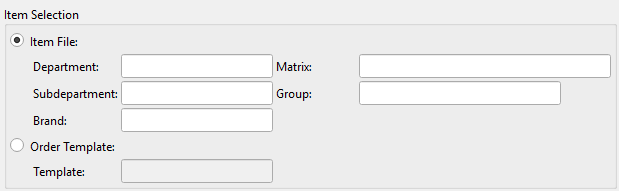
Item FileRadio button (default). Scans the item file for all active, stocked, purchased items matching the optional filters below. In Purchase Order mode, items are further filtered to only those supplied by the selected vendor. Discontinued items are always excluded. DepartmentRestrict to items in a specific department. Lookup. Optional. SubdepartmentRestrict to items in a specific subdepartment. Lookup. Optional. BrandRestrict to items of a specific brand. Lookup. Hidden when the Brand feature is disabled. Optional. MatrixRestrict to items belonging to a specific size/colour matrix. Lookup. Optional. GroupRestrict to items in a specific item group. Lookup. Optional. Order TemplateRadio button. Uses a pre-defined Order Template to specify the exact list of items (and sizes) to evaluate. The template’s charges (internal and external) are also carried forward to the generated purchase order. The template dropdown is filtered to templates matching the selected vendor. TemplateThe order template to use when Order Template selection is active. Lookup. |
Calculation Method
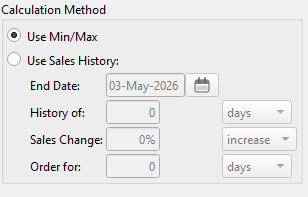
Min/Max Method (default)Radio button. Uses the Min Qty and Max Qty values defined on each item’s Stocking tab (per store). If the available quantity falls below the minimum, the engine orders up to the maximum. Items with Min or Max set to zero are skipped.
Sales History MethodRadio button. Calculates order quantities by projecting future demand from past sales, then adding the item’s minimum quantity as safety stock. End DateThe end of the sales history window. Defaults to today. History ofLength of the sales history window. Enter a number and choose days, weeks, or months. For example, “4 weeks” looks back 28 days from the end date. History TypeDropdown: days, weeks, or months. Qualifies the History of value. Sales ChangeOptional percentage adjustment applied to the historical sales quantity. Choose increase to inflate projected demand (e.g., for seasonal peaks) or decrease to deflate it. Sales Change TypeDropdown: increase or decrease. Qualifies the Sales Change percentage. Order forThe number of future days/weeks/months of demand to cover with this order. The engine calculates: Order for TypeDropdown: days, weeks, or months. Qualifies the Order for value. |
Available Quantity Formula
|
The engine calculates the Available Quantity for each item at each store using the following formula: Available = On Hand − Dedicated + On Order + In Transit
This ensures the engine does not order items that are already committed, and credits items that are already on their way. |
Order Quantity Rounding
|
After calculating the raw needed quantity, the engine applies two rounding steps: Size RoundingThe raw quantity is divided by the item’s size quantity (e.g., a case of 12) and rounded up to the next whole unit. This ensures you always order full cases / packs. Order Multiple Rounding (Purchase Order mode only)The quantity is then rounded up to the next multiple of the item’s Order Multiple. The order multiple is taken from the vendor’s replacement cost record, with the store-level multiple used as an override if it is larger. For example, if the order multiple is 6 cases and the engine calculates a need for 8 cases, the order is rounded up to 12 cases. Items with a store multiple of zero are skipped entirely (no order generated). |
Multi-Store Order Aggregation
|
When ordering for multiple stores (Store Group or All Stores), the engine follows this aggregation logic: 1. For each item, iterate through all stores in scope and sum the shortage (needed − available) across every store that is below its required level. The result is a single consolidated purchase order that covers the combined demand of all stores, offset by any existing warehouse surplus. |
Transfer Mode — Pricing
|
When creating a transfer, item pricing on the transfer document is determined by the source (“From”) store’s Price Level setting:
Tax-inclusive and deposit-inclusive pricing adjustments are applied automatically based on the item’s price configuration. |
Charges (Purchase Order mode with Template)
|
When using an Order Template, the template’s charges are copied to the generated purchase order and processed automatically: Internal ChargesAbsorbed into item cost (e.g., freight, duty). The engine calculates amounts for non-manual charges (by cost percentage or weight), applies applicable tax, and allocates the charge proportionally across order lines based on cost or weight ratio. Any rounding remainder is applied to the last line item. External ChargesPosted separately from item cost. Same calculation and allocation logic as internal charges, but amounts are recorded in the ext_charges field rather than added to inventory cost. |
Validation & Output
|
Before generating output, the engine validates: • Vendor is required (Purchase Order mode) Progress BarOn success, a progress bar tracks item evaluation. The generated Purchase Order or Item Transfer is saved to the database and its master screen opens automatically for review. |
Buttons
OKGenerates the purchase order or transfer based on the current settings and opens it in the master screen for review. CancelCloses the Auto Order window without generating any order. |
Related Screens
| Purchase Order | Item Transfer | Order Template | Stock Status | Item Master |
| Quasar Accounting 7.1 • © Linux Canada Inc. • Table of Contents |