
AI & Automation
AI Provider Master
The AI Provider Master stores the connection details for an AI service such as xAI, OpenAI, or Anthropic — the URLs, API key, and the models and features Quasar is permitted to use. Providers are referenced by AI Skills, which decide what each provider is used for. No provider URL, key, or model is hard-coded anywhere in Quasar; everything comes from these records. Access from System › Setup › AI Provider Master, or from the AI Provider List.
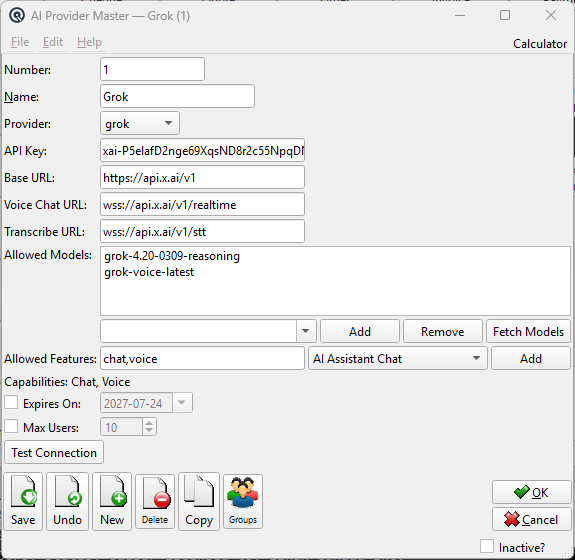
Fields
NumberOptional provider number. Used to order providers in lookups. NameThe descriptive name shown wherever a provider is selected (e.g., "xAI Grok", "OpenAI Production"). ProviderThe provider type: grok, openai, anthropic, or custom. This selects the request format Quasar and the server AI services use when calling the service. Choose custom for any OpenAI-compatible endpoint. API KeyThe authentication key issued by the provider. Sent as a bearer token on every request. Text Chat URLThe REST API base URL (e.g., https://api.x.ai/v1). Used by the server AI for chat, PDF invoice extraction, and Analyze Sample. It is also the fallback used to derive the Voice Command URL when that is left empty. Voice Chat URL (hidden)Not shown on the screen and not used in the current architecture. Voice chat is spoken through the Voice Command URL (speech-to-text) and answered as text in the AI Assistant panel, so a provider is voice-chat capable when it has a Text Chat URL plus a Voice Command URL. The legacy database column remains for compatibility. Voice Command URLWebSocket URL for speech-to-text transcription, used to turn spoken commands and voice chat utterances into text. Leave empty to derive it from the Text Chat URL by appending /v1/stt. Required for the Voice Command skill type. Allowed ModelsThe list of models Quasar may use with this provider. A skill can only select a model that appears here, which keeps cost and capability under administrative control. Add models with the entry box and Add, or use Fetch Models to retrieve the list from the provider. Model EntryType or select a model name to add to the Allowed Models list. Allowed FeaturesComma-separated feature flags this provider supports, such as voice and realtime. Skills check these before offering a capability. CapabilitiesRead-only summary of what this provider can currently do, based on the URLs and features configured above. Expires OnOptional expiry date for the subscription or key. Leave empty if the key does not expire. Max UsersOptional limit on concurrent users of this provider. Zero means unlimited. |
Toolbar Actions
Test ConnectionVerifies the provider URL and API key by calling the models endpoint. Use this after entering a key to confirm the credentials work before configuring skills. Fetch ModelsRetrieves the list of available models from the provider API so they can be added to Allowed Models without typing them. Save / Undo / New / Delete / CopyStandard master screen actions. OK / CancelSave and close, or discard and close. Inactive?Toggle to deactivate the provider. Inactive providers are hidden from lookups but preserve historical job logs. |
Notes
|
A single provider can serve every AI feature if it supplies the Text Chat URL and Voice Command URL, or you can define one provider per service — for example one for voice commands and another for text chat. The provider does not decide what it is used for; that is set by the skill type on each AI Skill. |
Related Screens
| AI Providers | AI Skill Master | AI PDF Invoices | Client Daemon Configuration |
| Quasar Accounting 7.1 • © Linux Canada Inc. • Table of Contents |