
Setup & Configuration
Open Balances
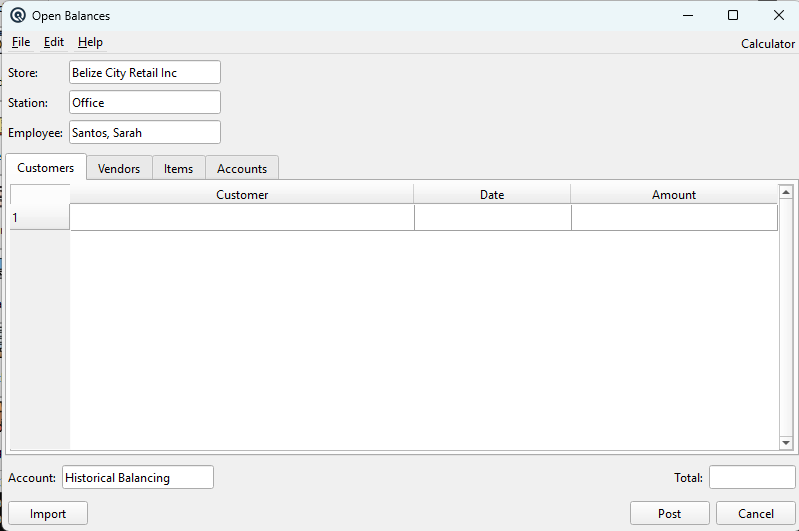
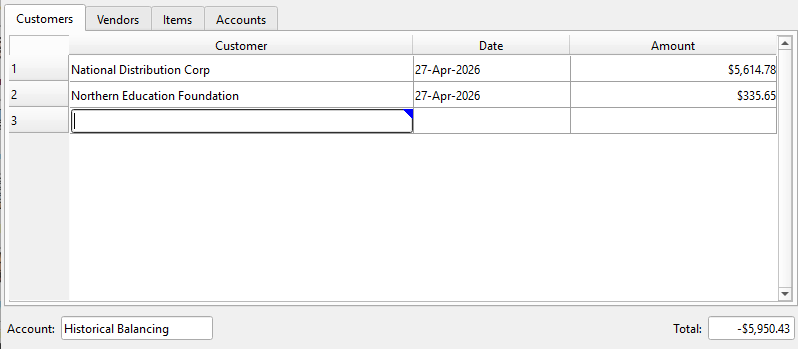
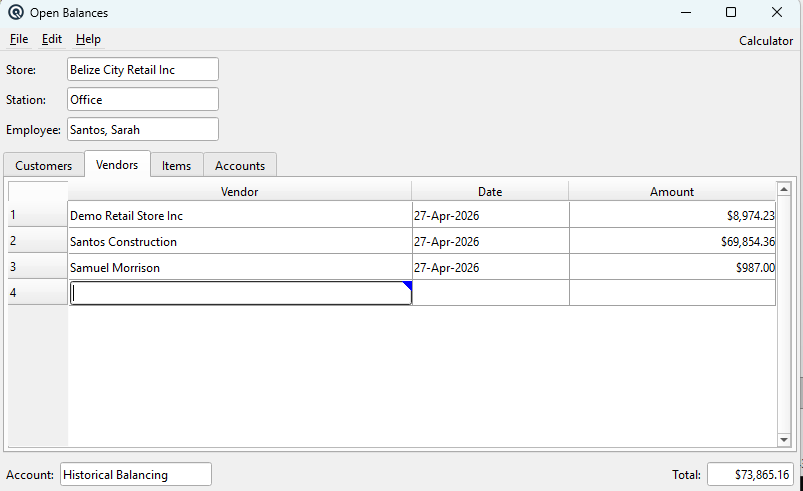
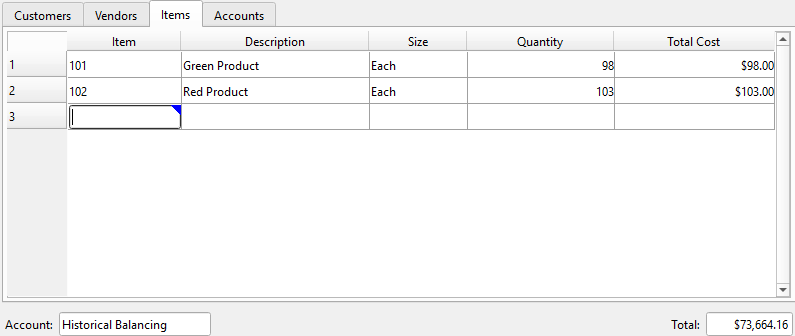
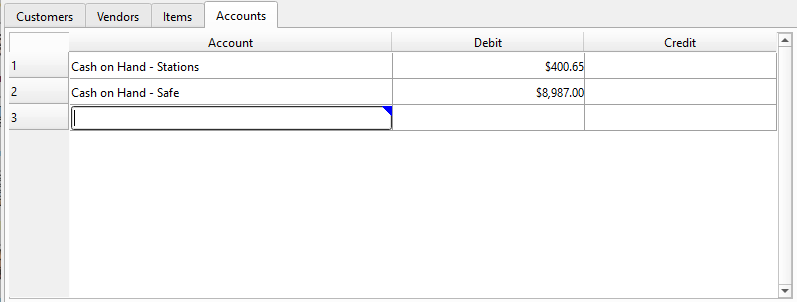
The Open Balances screen is used during initial setup to enter starting balances for customers, vendors, inventory items, and GL accounts. Balances can be entered manually or imported from an XML file. Each balance type has its own tab. When posted, offsetting entries are created against the Historical Balancing account defined in the Store Master. For a complete walkthrough, see the Quasar Guide. Access from Setup › System › Open Balances.
General
StoreThe store to post opening balances against. Changing the store resets the station and employee lookups to that store’s context. StationThe POS station associated with the posting. EmployeeThe employee associated with the posting. AccountThe Historical Balancing GL account. All offsetting entries post to this account. Defaults to the account defined on the Store Master. TotalRunning total of all entered balances (read-only). |
Customers Tab
Vendors Tab
Items Tab
Accounts Tab
Import from XML
|
Click Import to load balances from an XML file. The file must have
a Customers and vendors match by name first, then by number. Items match by item number only. Accounts match by name first, then by number. After import, all four tabs are populated with the imported data. Review the entries before clicking Post. |
Buttons
ImportOpens a file dialog to select an XML balances file for import. PostPosts all entered balances. Creates Card Adjustments for customers and vendors, Item Adjustments for inventory, and General Journal entries for accounts. All offsetting entries post to the Historical Balancing account. CancelClose the screen without posting. |
Related Screens
| Store Master | Chart of Accounts | Customers | Vendors |
| Quasar Accounting 7.1 • © Linux Canada Inc. • Table of Contents |