
Accounts & Ledger
Tender Reconcile Wizard
The Tender Reconcile Wizard guides you through the end-of-day process of comparing physically counted tenders against Quasar's transaction records, recording any over/short, and transferring final tender totals to a bank deposit or safe. The wizard processes one store at a time and enforces sequential date finalization. Access from Sales › Tender Reconcile.
The wizard consists of six pages that are traversed in a context-sensitive order depending on whether shifts still need reconciling or only finalization remains.
Page 1 — Store Selection
|
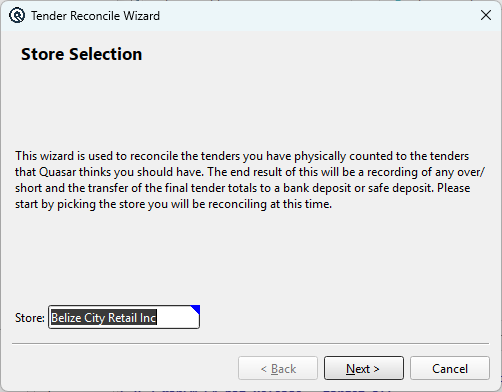
Select the store to reconcile. The wizard defaults to your current store. StoreStore lookup. The Next button is disabled until a valid store is selected. On Next, the wizard queries the database for: • Transactions not yet assigned to a shift ("not rungoff"), grouped by work date and station/employee If nothing needs reconciling for the selected store, an error is shown and you remain on this page. |
Page 2 — Date Selection
|
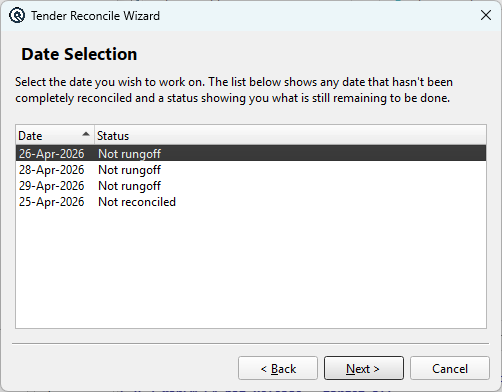
Select the work date you want to process. The list shows all dates with outstanding work. Work DatesList of work dates requiring action with status for each.
Navigation LogicWhen you click Next, the wizard determines where to go: • If shifts still need reconciling (station/employee shifts remain) → Page 3: Reconcile Shifts |
Page 3 — Reconcile Shifts
|
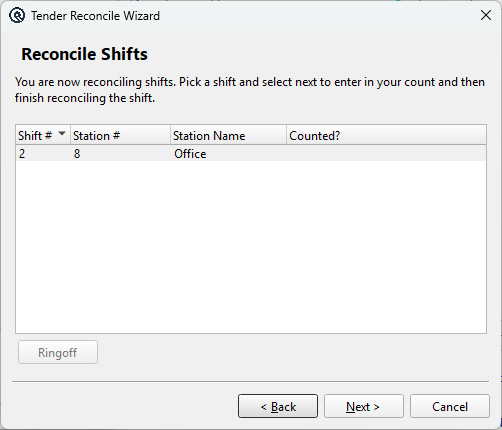
Lists all unreconciled shifts for the selected date. Select a shift and click Next to enter your tender count for that shift. The column headers adapt based on the store's shift method: Shifts
Ringoff ButtonEnabled when transactions exist that haven't been assigned to a shift for the selected date. Clicking Ringoff opens a dialog listing stations or employees with un-rungoff transactions: 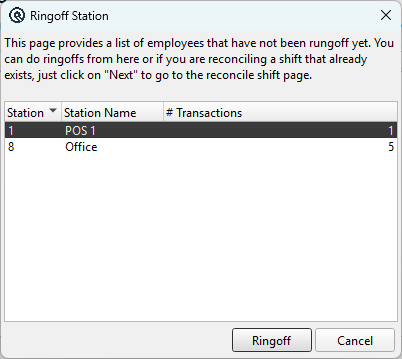 Ringoff ListStations or employees with un-rungoff transactions for the selected date.
Select a row and click Ringoff to create a shift for the selected station/employee. Click Cancel to return without ringoff. Safe station/employee entries are excluded — they are handled on the Finalize page. |
Page 4 — Count Tenders
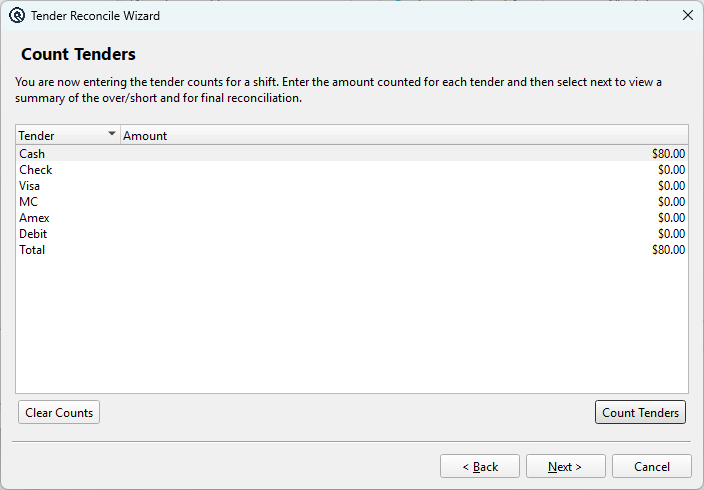
|
Enter the physically counted amount for each tender type in the selected shift. Tender CountsList of tender types and the counted amount for each.
Clear CountsResets all counted amounts to zero. Count TendersOpens the full Tender Count dialog for detailed counting: 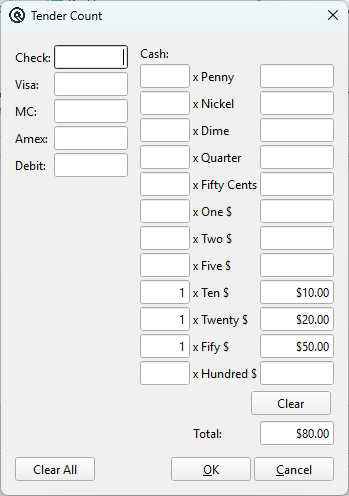 The Tender Count dialog supports three counting modes based on each tender's configuration:
Bottom buttons: Clear All resets all tenders, OK saves counts back to the wizard, Cancel discards changes. Click Next to proceed to the summary where over/short is calculated. |
Page 5 — Reconcile Summary
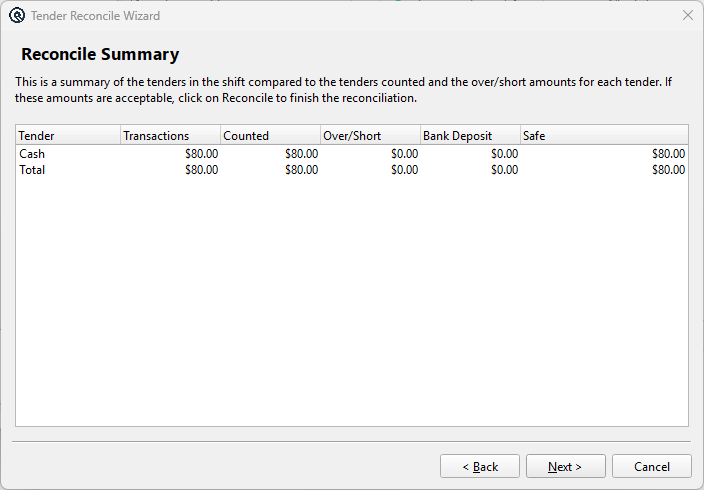
|
Displays the comparison between system transaction totals, your physical count, and the resulting over/short for each tender. Also shows the calculated bank deposit and safe transfer amounts. Reconcile SummaryList of tender totals, counts, over/short, bank deposit and safe amounts.
Reconcile ActionClicking Next executes the reconciliation, which: • Records any over/short as a Tender Adjustment transaction If the over/short exceeds the tender's configured limit, a confirmation dialog appears asking whether to proceed or cancel. After ReconciliationThe wizard automatically navigates based on remaining work: • More shifts to reconcile → Returns to Page 3: Reconcile Shifts |
Page 6 — Finalize Work Date
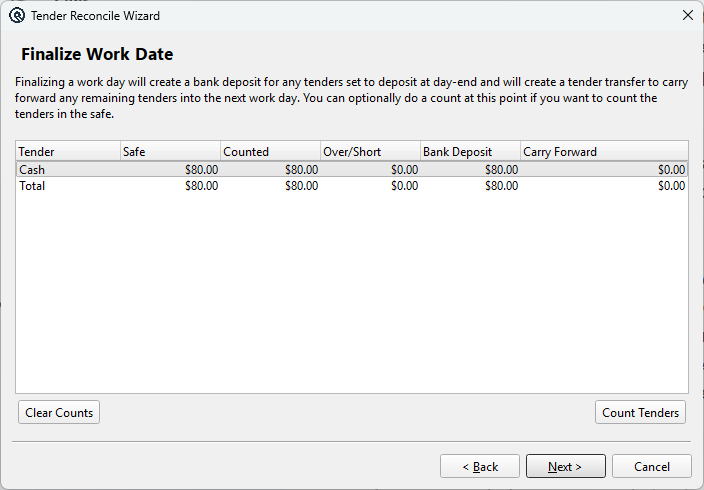
|
The final step that closes out the work date. This page shows the safe's tender totals and allows an optional physical count before finalizing. Finalize Work DateList of safe tender totals, optional counts, bank deposits and carry-forward amounts.
Clear CountsResets the safe count to zero. Count TendersOpens the full Tender Count screen for denomination-based counting of the safe contents. Finalize ActionClicking Finalize performs the following: • Reconciles the safe shift (records over/short via Tender Adjustment) Pre-Finalize Validation
After Finalization• If more dates need work → Returns to Page 2: Date Selection |
Wizard Flow Diagram
|
Page 1: Store Selection |
Related Screens
| Reconcile List | Reconcile Master | Shift List | Tender Master | Store Master |
| Quasar Accounting 7.1 • © Linux Canada Inc. • Table of Contents |