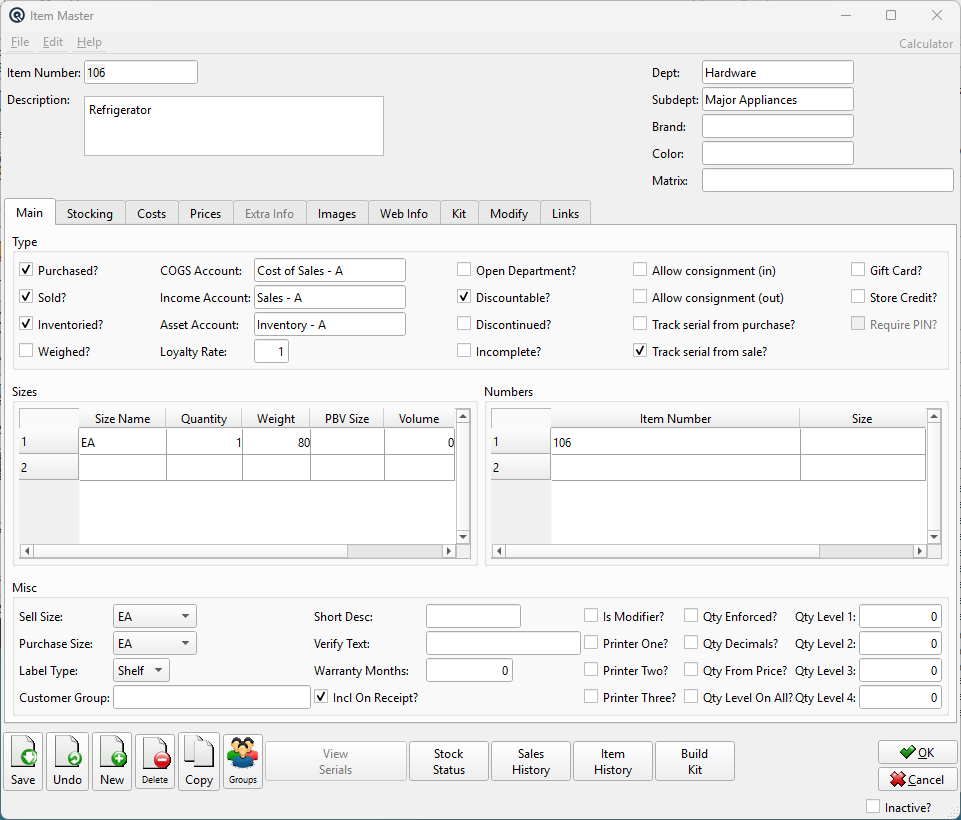
The Item Master is the central screen for creating and managing inventory items in Quasar. It is the most feature-rich master screen in the system, with ten tabs covering item classification, multi-size definitions, vendor costs, selling prices, images, kit assembly, POS modifiers, and more. Every item — whether purchased, sold, inventoried, or a combination — is defined here. Access from Inventory › Items › Item Master or from the Item List.
Header Fields
Item Number
Unique identifier for the item (up to 18 characters). Can be a SKU, PLU, or barcode. Additional numbers and barcodes can be added in the Numbers table on the Main tab.
Description
Multi-line item description (displayed as a 60-pixel text area). This is the primary description used on invoices, receipts, and reports.
Dept / Subdept
Classification hierarchy. The subdepartment inherits default settings for tax codes, GL accounts, and target profit margins. Changing the subdepartment updates the item's account defaults.
Brand
Optional brand classification for reporting and filtering.
Color
Color classification. Visible only when the Color feature is enabled.
Matrix
Matrix group assignment for style-based items (e.g. apparel with size/color variants). Visible only when the Matrix feature is enabled.
Intl. Product Code
UNSPSC/SAT product classification for electronic invoicing. Visible only in Mexico locale. Uses cascading dropdowns: Segment → Family → Class → Code. The Search button searches the catalog using the item description.
Number
Transaction number. Auto-generated by default; enter # for next sequence number.
Reference
Reference string for cross-referencing or notes (optional).
Status
Transaction status. Controls posting and visibility in lists.
Date
Posting date for the transaction. Defaults to today.
Time
Time of posting. Auto-filled from the system clock.
Work Date
Work date for the transaction (may differ from posting date).
Shift
Shift assignment for labour or shift-based reporting.
Store
Store where the transaction is posted. Defaults to current store.
Station
Workstation or terminal where the transaction was entered.
Employee
Employee who created or is responsible for the transaction.
Memo
Free-form memo or notes attached to the transaction.
Account Class
Controls the accounting class used for posting transactions for this item. See the Account Class Master.
Department
Top-level classification for tax and GL defaults.
Subdepartment
More specific classification under Department.
UNSPSC Segment
UNSPSC segment dropdown.
UNSPSC Family
Family dropdown for UNSPSC classification.
Intl. Product Class
International product class for UNSPSC.
Search Code
Search for UNSPSC codes by description.
Action Buttons
View Serials
Opens a read-only list of all serial numbers tracked for this item. Enabled only after the item is saved. See Serial List.
Stock Status
Opens Stock Status for this item, showing on-hand, on-order, and committed quantities across all stores.
Opens Item History showing all transactions that affected this item.
Build Kit
Launches the Item Build screen to assemble this item from its kit components (defined on the Kit tab).
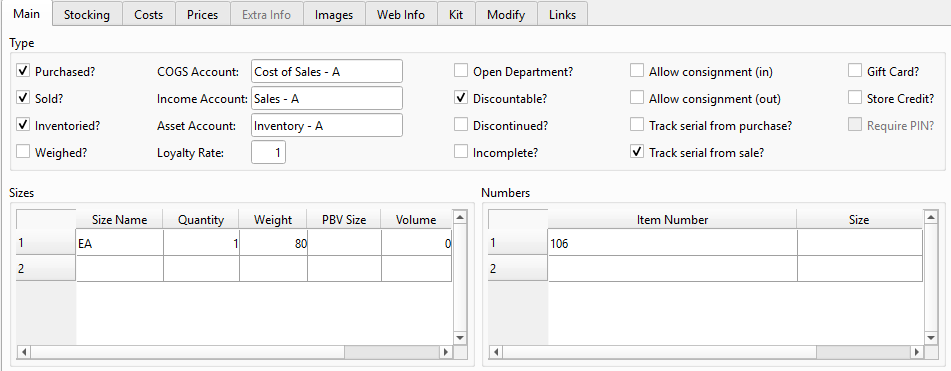
Main Tab
The Main tab contains three group boxes: Type, Sizes/Numbers, and Misc.
Type Group
Purchased? — Item can appear on purchase orders and vendor invoices. Sold? — Item can appear on customer invoices and POS transactions. Inventoried? — Item maintains on-hand stock quantities. Disabling this hides the Asset Account and disables serial tracking. Weighed? — Item is sold by weight (integrates with POS scale).
COGS Account — General Ledger account for Cost of Goods Sold. Label changes to "Expense Account" when the item is not inventoried. Income Account — GL account for sales revenue. Asset Account — GL account for inventory asset value. Only visible when Inventoried is checked.
Loyalty Rate — Points multiplier for loyalty programs (e.g. 1.5 = 150% of base points). Open Department? — Allows price entry at POS (no fixed price required). Discountable? — Whether line and transaction discounts apply to this item. Discontinued? — Marks the item as discontinued. It remains in the system but is flagged for reporting. Incomplete? — Flags the item as incomplete (missing required data). Used during initial data entry or catalog imports so that partially-entered items can be saved without triggering validation errors. Incomplete items appear in the Item List with an Incomplete filter, making it easy to find and finish them later.
Allow Consignment (in) — Item can be received on consignment from vendors. Allow Consignment (out) — Item can be sent on consignment to customers. Track Serial from Purchase? — Captures serial numbers when receiving. Requires Inventoried to be checked. Track Serial from Sale? — Captures serial numbers when selling. Gift Card? — Item is a gift card (enables gift card balance tracking). Automatically adds "Initial Amount" and "Current Balance" extra data fields. Store Credit? — Item is a store credit voucher. Automatically adds "Initial Amount" and "Current Balance" extra data fields. Require PIN? — Enables PIN security for this gift card or store credit. When checked, the POS automatically generates a 4-digit PIN at activation and displays PIN and Recovery Phone fields on the Serial Master. The PIN must be entered at the POS before the card can be redeemed.
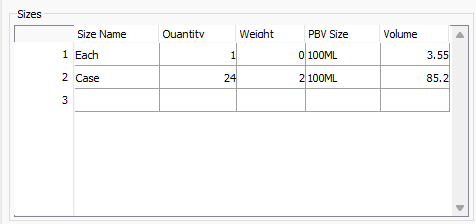
Sizes Group
Defines the units of measure for the item. Each size has its own quantity multiple, weight, and barcode mapping.
Column
Description
Size Name
Name of the unit (e.g. Each, Case, Box, Pack). Editable combo box.
Quantity
Multiple relative to the base size (e.g. Case = 12 Each).
Weight
Weight per unit for shipping calculations.
PBV Size
Price Book Verification size code for external price file imports.
Volume
Volume per unit.
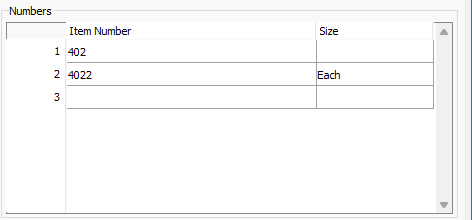
Numbers Group
Multiple barcodes and alternate item numbers per size. Scanning any listed number retrieves this item at the associated size.
Column
Description
Item Number
Barcode or alternate SKU (up to 18 characters).
Size
Which size this number maps to.
Misc Group
Sell Size — Default size used when selling this item (e.g. Each). Purchase Size — Default size used on purchase orders (e.g. Case). Label Type — Shelf, Item, or None. Controls which label format is used when printing labels. Customer Group — Optional customer group for loyalty targeting and group-specific pricing.
Short Desc — Abbreviated description (up to 18 characters) for receipt printing and POS displays. Verify Text — Text displayed to the cashier at POS for age verification or special handling (up to 30 characters). Warranty Months — Warranty period for reporting and serial number tracking.
Is Modifier? — Marks this item as a modifier (add-on) that can be attached to other items on the Modify tab. Incl On Receipt? — Whether the item appears on printed receipts. Printer One/Two/Three? — Routes this item to specific POS printers (e.g. kitchen, bar, prep station).
Qty Enforced? — Prevents the cashier from changing the quantity at POS. Qty Decimals? — Allows fractional quantities (e.g. 1.5 kg). Qty From Price? — Calculates quantity from the entered price (for weighed/measured items).
Qty Level 1–4 — Quantity break levels for multi-level pricing. When the sold quantity reaches a level threshold, the corresponding price level is used. Qty Level On All? — Applies quantity level pricing across all items in the transaction (not just this item).
Stocking Tab
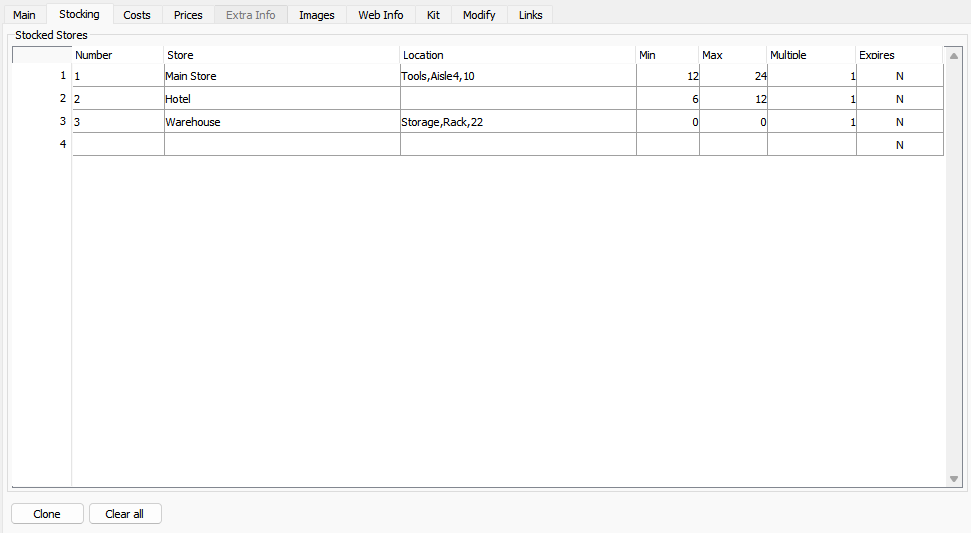
Defines which stores carry this item and their stocking parameters. Each row represents one store.
Store — The store that stocks this item. Number — Store-specific item number or bin code. Location — Warehouse location or shelf position within the store. Min — Minimum stock level. When on-hand falls below this, the item appears on the Auto Order report. Max — Maximum stock level. Auto Order calculates order quantity as Max minus On-Hand. Multiple — Order multiple (e.g. 6 means order in multiples of 6 units). Expires — Whether this item tracks expiry dates at this store. Visible only when the Expiry feature is enabled.
Clone
Opens the Clone Stocked dialog to copy stocking parameters to multiple stores at once. Options include cloning to all stores, a store group, or a price zone with specified min, max, and order multiple values.
Clear All
Removes all stocking rows. The item will not be stocked at any store until new rows are added.
Costs Tab
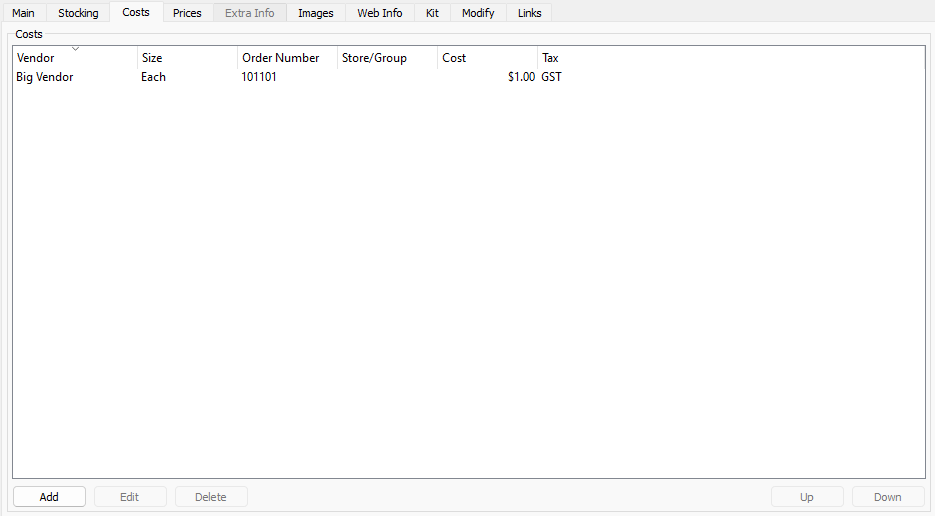
Vendor cost records for this item. Multiple vendors can supply the same item, and costs can vary by size, store, or store group. The list order determines priority — the first matching cost is used by Auto Order.
Vendor — The supplying vendor. Size — The purchase size for this cost (e.g. Case, Each). Order Number — Vendor's catalog or order number for this item. Store/Group — Which store or store group this cost applies to. Blank means all stores. Cost — Unit cost in the purchase size. Tax — Purchase tax code applied to this cost.
Add — Opens the Edit Cost dialog (see below). Edit — Modifies the selected cost. Delete — Removes the selected cost. Up / Down — Changes cost priority order. The first matching cost wins during auto-ordering.
Edit Cost Dialog
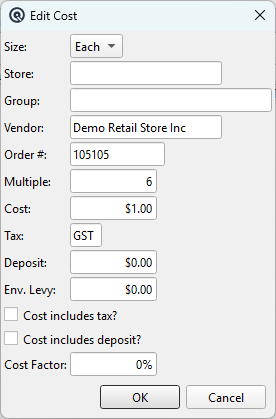
The Edit Cost dialog opens when you click Add or double-click an existing cost row. It defines a vendor cost record for a specific size, store, and vendor combination.
Size — The purchase size this cost applies to (e.g. Each, Case, Box). Store — The specific store this cost applies to. Leave blank for all stores. Cannot be set together with Group. Group — A store group this cost applies to. Leave blank for all stores. Cannot be set together with Store. Vendor — The supplier providing this item at this cost. Order # — The vendor’s catalog or order number for this item (up to 18 characters). Used on purchase orders. Multiple — Order multiple (e.g. 6 means the vendor sells in packs of 6). Defaults to 1. Cost — The purchase cost per unit in the selected size. Tax — Purchase tax code. Defaults from the subdepartment’s Purch Tax setting for the store’s zone. Deposit — Container deposit per unit (e.g. bottle deposit). Env. Levy — Environmental levy per unit. Cost includes tax? — When checked, the Cost field includes purchase tax. Quasar back-calculates the base cost. Defaults from the subdepartment. Cost includes deposit? — When checked, the Cost field includes the deposit amount. Defaults from the subdepartment. Cost Factor — A percentage multiplier applied to the base cost for landed cost calculations (e.g. freight, duties).
Prices Tab
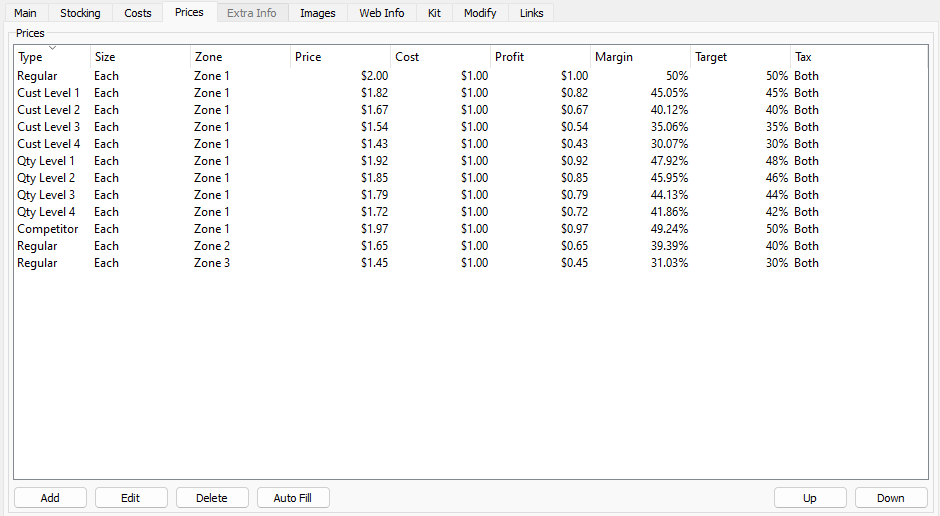
Selling prices for this item. Prices can be defined per size, per price zone, and per price type (Regular, Promotional, etc.). Margin calculations are shown inline.
Type — Price type (Regular, Promotional, etc.). Size — Which item size this price applies to. Zone — Price zone. Different zones can have different prices (e.g. urban vs. rural). Price — Selling price per unit. Cost — Corresponding cost (read-only, from the Costs tab). Profit — Calculated profit (Price minus Cost). Margin % — Actual profit margin percentage. Target % — Target margin from the subdepartment. Highlighted when actual margin deviates. Tax — Selling tax code.
Add — Opens the Edit Price dialog (see below). Edit — Modifies the selected price. Delete — Removes the selected price. Up / Down — Changes price priority order. Auto Fill — Automatically generates prices for all zones that have costs defined but no prices. Uses the subdepartment's target margin and the zone's rounding rules to calculate appropriate selling prices.
Edit Price Dialog
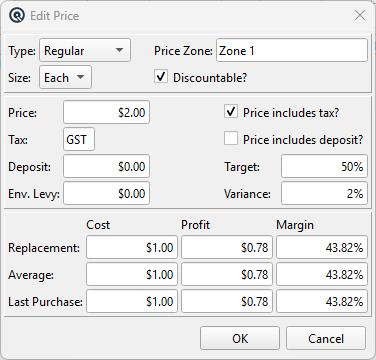
The Edit Price dialog opens when you click Add or double-click an existing price row. It provides a comprehensive pricing workspace with three panels.
Top Panel — Price Identity
Type — The price type:
• Regular — standard selling price
• Cust Level 1–4 — tiered pricing for customers assigned a price level on their Customer Master
• Qty Level 1–4 — volume break pricing; applies when the customer buys at or above the item’s quantity threshold
• Low Price — minimum acceptable selling price (price floor)
• MSRP — manufacturer’s suggested retail price (informational)
• Competitor — competitor’s price (informational)
Customer Levels and Quantity Levels are feature-gated — they appear only when enabled in the Feature Profile. Size — The selling size this price applies to. Price Zone — The zone this price is valid in. Discountable? — Whether this price is eligible for discounts.
Middle Panel — Price, Tax, and Margin
Price — The selling price. If tax-included, this is the customer-facing price; if tax-added, this is the base price before tax. Tax — Selling tax code. Defaults from the subdepartment. Only editable on Regular price entries — other types inherit from Regular. Deposit — Container deposit amount. Only editable on Regular entries. Env. Levy — Environmental levy amount. Only editable on Regular entries. Price includes tax? — When checked, the Price includes tax. Quasar back-calculates the base price for margin analysis. Only editable on Regular entries. Price includes deposit? — When checked, the Price includes the deposit. Only editable on Regular entries. Target — Target gross margin %. Defaults from the subdepartment. Changing this recalculates the Price from replacement cost and the new target. Variance — Allowed deviation from the target margin.
Bottom Panel — Profitability Analysis
A cost/profit/margin matrix calculated against three cost bases. Profit and Margin fields are editable — entering a desired profit or margin in any row recalculates the Price automatically.
Replacement — Current replacement cost (read-only). Profit and margin are editable. Average — Weighted average cost based on on-hand inventory in the zone (read-only). Profit and margin are editable. Last Purchase — Most recent purchase cost from vendor invoices in the zone (read-only). Profit and margin are editable.
Tip: To price based on a desired margin against your most recent cost, type the margin percentage in the Last Purchase row’s Margin field — Quasar fills in the Price for you, rounded according to the zone’s rounding rules.
Extra Info Tab
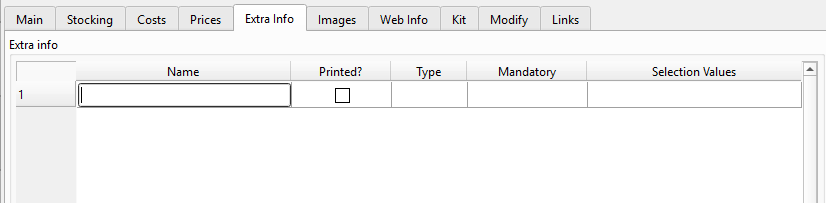
User-defined custom fields for this item. Extra data fields extend the item with business-specific information without requiring database schema changes. Values are captured during receiving or selling based on the Mandatory setting.
Name — Field name (displayed as a label when capturing data). Printed? — Whether this field's value prints on receipts and reports. Type — Data type: Text, Numeric, Selection (dropdown list), Date, or Currency. Mandatory — When the value is required: No (optional), When Receiving (required on purchase receipts), or When Selling (required on invoices/POS). Selection Values — Comma-separated list of valid choices (only used when Type is Selection).
Images Tab
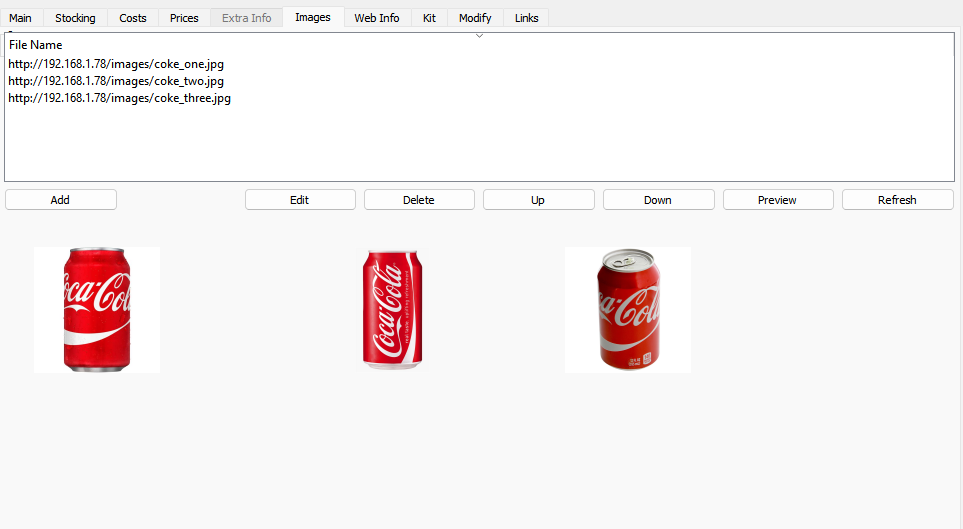
Product image gallery. Up to 10 images can be attached to an item. Images are displayed as thumbnails in a preview grid below the file list. Supports file upload, URL download, and clipboard paste.
Add — Attach a new image from file, URL, or clipboard. Edit — Change the source of the selected image. Delete — Remove the selected image. Up / Down — Reorder images. The first image is the primary product image. Preview — Open a full-size preview of the selected image. Double-click also previews. Refresh — Reload all thumbnail previews from the image data.
Right-click any thumbnail in the preview grid for a context menu with Preview, Delete, and Copy options.
Web Info Tab
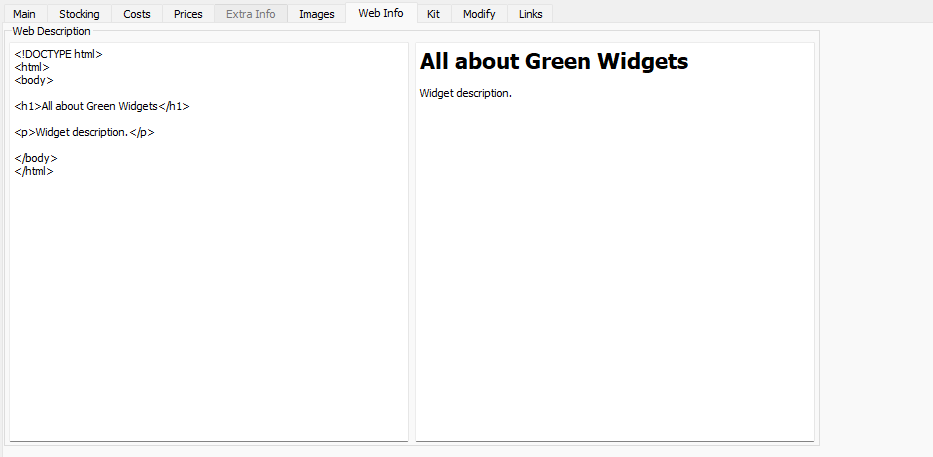
Extended HTML description for e-commerce integrations. The left pane is a plain-text HTML editor; the right pane shows a live rendered preview. Content entered here is exported to web stores (OpenCart, WooCommerce) via the Quasar e-commerce bridge.
Enter standard HTML markup in the editor. The preview updates in real time as you type. Use headings, lists, bold, and other HTML formatting to create rich product descriptions for your online store.
Kit Tab (Bill of Materials)
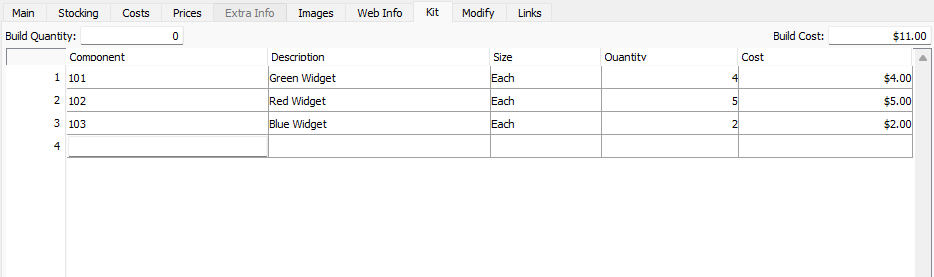
Defines the bill of materials for assembled or manufactured items. Each row is a component required to build one unit of this item.
Build Quantity
Number of finished units to produce in one build run.
Build Cost
Calculated total cost of all components (read-only). Updates automatically as components are added or quantities changed.
Component — The component item. Lookup from the item list. Description — Auto-filled from the component item (read-only). Size — Component size (dropdown from the component's defined sizes). Quantity — How many of this component are needed per build. Cost — Component cost (read-only, calculated from the component's cost record).
Use the Build Kit action button to launch the Item Build screen, which consumes the listed components from inventory and produces the finished item.
Modify Tab (POS Modifiers)
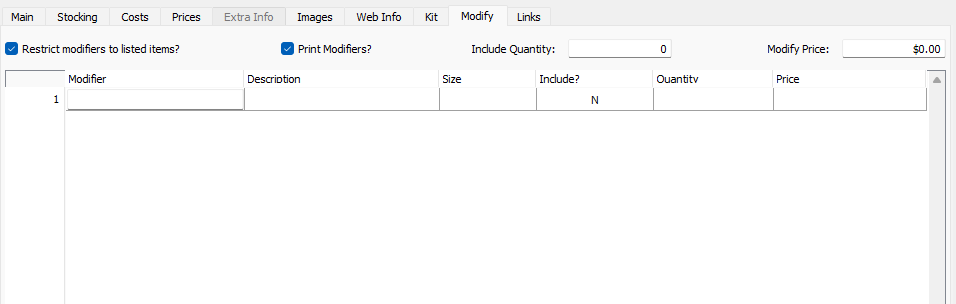
Modifier items that can be added to this item at the POS. Used for restaurant and food-service workflows where items have add-ons (e.g. extra cheese, toppings, sides). Only items flagged as Is Modifier? on the Main tab appear in the modifier lookup.
Restrict Modifiers to Listed Items?
When checked, only the modifiers listed in the table can be added. When unchecked, any modifier item can be attached at POS.
Print Modifiers?
Whether modifier items print on kitchen/receipt printers.
Include Quantity
Maximum number of modifier items that can be included at no extra charge. Beyond this limit, each modifier is charged at its listed price.
Modify Price
Read-only total price of all modifiers currently in the table.
Modifier — The modifier item to attach. Description — Auto-filled from the modifier item (read-only). Size — Modifier size. Include? — Whether this modifier is included in the base price (within the Include Quantity limit). Quantity — Default quantity of this modifier. Price — Modifier price (read-only, from the modifier item's price record).
Links Tab
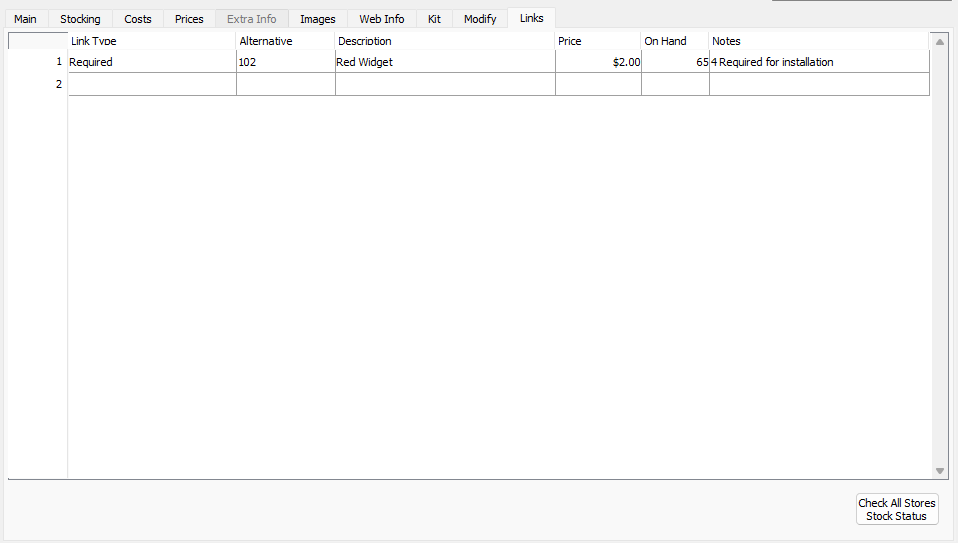
Linked items for cross-selling, substitution, and related product suggestions. When selling this item, linked items can be offered to the customer at the POS via the Linked Items dialog.
Link Type — Relationship type (e.g. Substitute, Accessory, Related). Defined in Link Type Master. Alternative — The linked item. Description — Auto-filled from the linked item (read-only). Price — Linked item's selling price (read-only). On Hand — Current stock quantity (read-only). Notes — Free-text notes about the relationship.
Check All Stores Stock Status
Opens Stock Status for all linked items across all stores, helping identify available substitutes.