
Card File & CRM
Job Master
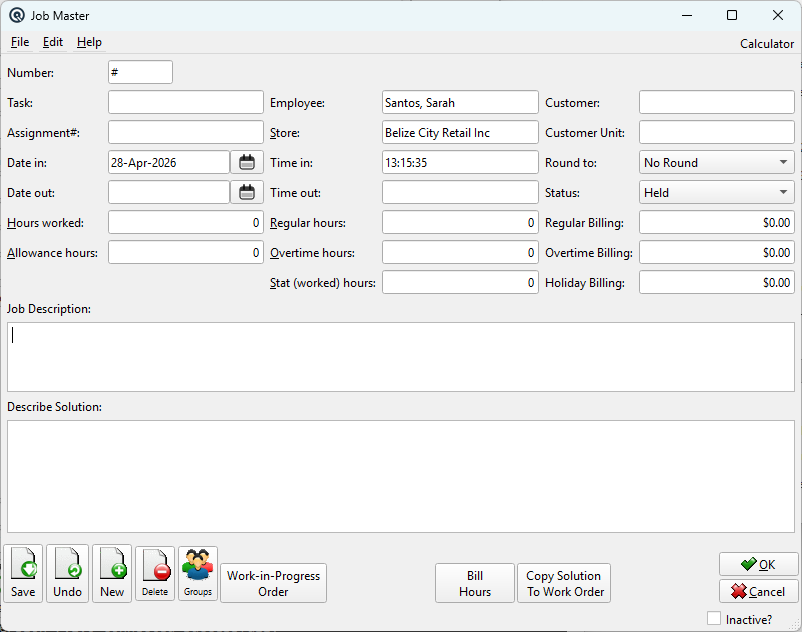
The Job Master records an individual work assignment within a Task. Each job tracks one employee's time on a task — sign-in/out, hours worked, billing amounts — and provides the bridge to Sales Orders for invoicing. Access from the Task Master's job tabs, the Job List, or from Card File › Job Master.
How the Job Connects to Task, Sales Order, and Invoice
|
The Job's role in the billing pipeline: Task → Job: A job always belongs to a parent Task. When created from the Task Master, the Task, Customer, Store, and Employee are pre-filled and locked. The employee records their time and describes the work performed. Job → Sales Order: Clicking Bill Hours pushes the job's billable hours into a Sales Order (work order). The system looks up the employee's billing items (configured on the Employee Master — Regular, Overtime, Holiday item IDs) and adds them as line items with the hours as quantities. If a Sales Order already exists for this job, the hours are added to it; otherwise, a new one is created. Sales Order → Invoice: The Sales Order accumulates work from one or more jobs. When ready, the Task Master's Invoice Work Orders tab converts selected Sales Orders into a customer Invoice. Job completion: When a job's hours are billed and the Sales Order is saved, the job status can be set to Complete. Once complete, the Bill Hours, Work-in-Progress Order, and Copy Solution buttons are disabled. |
Header Fields
NumberAuto-generated job number. Used to reference this job on work orders and invoices. Sequence numbering is global (shared across all stores). TaskThe parent Task this job belongs to. When a job is created from the Task Master, this field is locked. It can be set manually when creating a standalone job. Assignment#The assignment number within the parent task. Assigned automatically by the Task Master's job numbering sequence. EmployeeThe worker assigned to this job. Determines which billing items (Regular, Overtime, Holiday) are used when hours are billed. Locked when created from a task. StoreThe store where the work is performed. Changing the store validates the employee's store assignment. CustomerInherited from the parent task. Identifies who the work is for. Locked when created from a task. Customer UnitInherited from the parent task. Identifies the business unit or equipment involved. Locked when created from a task. StatusHeld — Job is active and in progress. Complete — Work is done; billing buttons are disabled. |
Time Tracking
Date InWhen the employee started work. Defaults to the current date. Setting Time In without a Date In auto-fills today's date. Time InWhen the employee started work. Defaults to the current time. Date OutWhen the employee finished work. Defaults to the current date. Setting Time Out without a Date Out auto-fills today's date. Time OutWhen the employee finished work. Defaults to the current time. Hours Worked is automatically calculated from the In/Out timestamps. Round ToRounding mode for displayed hours: No Round (exact minutes), Quarter Hour (nearest 15 min), Half Hour (nearest 30 min), Hour (nearest 60 min). Rounding is applied to the display and billing calculation. |
Hours & Billing
Hours WorkedTotal hours on the job, auto-calculated from sign-in/out times. Can be manually overridden. Regular HoursStandard billable hours. Auto-calculates the Regular Billing amount using the employee's Regular billing item price (from the Employee Master). Overtime HoursOvertime billable hours. Auto-calculates the Overtime Billing amount using the employee's Overtime billing item price. Stat (Worked) HoursHoliday billable hours. Auto-calculates the Holiday Billing amount using the employee's Holiday billing item price. Allowance HoursNon-billable allowance hours (e.g., travel time, breaks). Not included in billing calculations. Regular BillingCalculated amount for regular hours: Regular Hours × Item Price. Overtime BillingCalculated amount for overtime hours: Overtime Hours × Item Price. Holiday BillingCalculated amount for stat/holiday hours: Stat Hours × Item Price. Billing amounts are calculated as: Hours × Item Price, where the price comes from the item's regular price in the current store's price zone. If the employee's billing items are not configured, the Bill Hours button will show an error. |
Notes
Job DescriptionMulti-line description of the work to be done. Pre-populated from the task's job assignment instruction when created from the Task Master. Describe SolutionMulti-line field for recording the solution, findings, or work performed. Can be copied to the associated Sales Order using the Copy Solution To Work Order button. |
Action Buttons
Work-in-Progress OrderOpens the Sales Order (work order) linked to this job. If no Sales Order exists yet, creates a new one pre-filled with the task's customer, store, and employee. If one already exists (from a previous Bill Hours action), opens the existing order. Bill HoursThe key billing action. Transfers the job's Regular, Overtime, and Holiday hours to a Sales Order as line items. The employee's billing items (from the Employee Master) determine the item number and price for each hour type. A confirmation prompt warns that the job will be set to "Complete" once the work order is saved. Requires all three billing items (Regular, Overtime, Holiday) to be configured on the Employee Master. Copy Solution To Work OrderCopies the Describe Solution text to the linked Sales Order's comment/memo field. Useful for passing resolution notes to the customer-facing work order document. |
Security
|
• EDIT_JOBS_OTHER — Required to view or edit jobs belonging to other employees. Without this permission, employees can only see their own jobs. |
Related Screens
| Job List | Task Master | Sales Order | Invoice | Employee Master |
| Quasar Accounting 7.1 • © Linux Canada Inc. • Table of Contents |