
Inventory
Stock Status
Stock Status is a comprehensive inventory inquiry screen that shows real-time on-hand quantities, on-order amounts, in-transit shipments, dedicated (allocated) stock, pricing, and consignment status for items across all stores. It operates in two modes: Single Item (view one item across all stores) and Multiple Items (view many items within a single store). The screen also features a powerful Mirror Status Screen that lets you drill into the per-store breakdown of any item selected in the Multiple Items list. Access from Inventory Info › Stock Status.
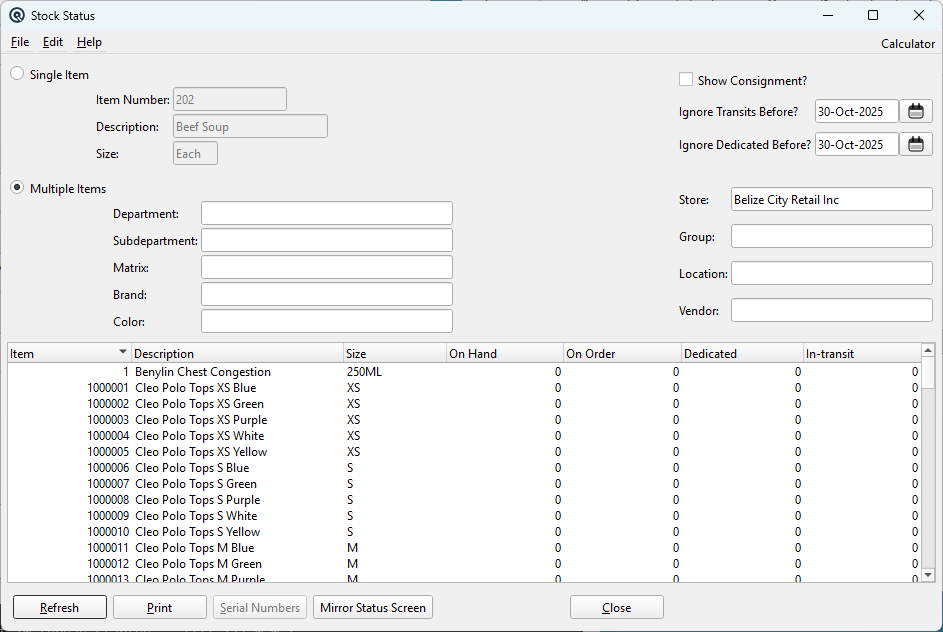
Single Item Mode
Shows the selected item's inventory position across all stores where it is stocked. Select the Single Item radio button to activate this mode.
Item NumberEnter or scan the item number to look up. The lookup is filtered to inventoried, stocked items. When an item is entered, the description and size are automatically populated and the results list refreshes immediately. DescriptionRead-only. The item's description, populated automatically. SizeRead-only. The item's default selling size. All quantities are displayed in this unit of measure. |
Single Item Results Columns
|
Store # — The store number. The row for the currently selected store is highlighted. A Total row is automatically appended, summing On Hand, On Order, Dedicated, and In-Transit across all stores. |
Multiple Items Mode
Shows the inventory position for many items within a store. Select the Multiple Items radio button to activate this mode. Use the filters to narrow the list.
DepartmentFilter to items in a specific department. Selecting a department restricts the subdepartment lookup to that department's children. SubdepartmentFilter to items in a specific subdepartment. Selecting a subdepartment automatically sets the department. MatrixFilter to items linked to a specific matrix group. Only visible when the Matrix feature is enabled. BrandFilter to items assigned to a specific brand. Only visible when the Brand feature is enabled. ColorFilter to items with a specific color. Only visible when the Matrix feature is enabled. StoreShow inventory for a specific store. Leave blank to show combined totals across all stores. Changing the store resets the location filter and validates the item lookup. GroupFilter to items belonging to a specific item group. LocationFilter to items stocked at a specific warehouse/shelf location. The location lookup is filtered to the selected store. VendorFilter to items that have a cost record linked to a specific vendor. |
Multiple Items Results Columns
|
Item — The item number. Double-clicking an item in this list switches to Single Item mode for that item, showing its breakdown across all stores. If the Mirror Status Screen is active, double-clicking updates the mirror window instead. |
Options
Sort ByControls the sort order of the Single Item results list. Options:
Show Consignment?When checked, four additional columns appear on both result lists, showing open consignment activity for each item:
Ignore Transits BeforeDate threshold for in-transit stock. Only item transfers posted on or after this date are included in the In-Transit column. Defaults to 180 days ago. Use this to exclude very old, stale transfers that are likely data issues rather than actual stock in transit. Ignore Dedicated BeforeDate threshold for dedicated stock. Only sales orders dated on or after this date are included in the Dedicated column. Defaults to 180 days ago. Use this to exclude old, unfulfilled orders from the allocation calculation. |
Action Buttons
RefreshReloads the results list with the latest data from the database. Use this after making changes in other screens (receiving stock, posting transfers, etc.) to see updated quantities. Generates a printable report from the current list view. In Single Item mode, the report includes the item number and description as titles. In Multiple Items mode, department, subdepartment, group, and location filters are included in the report header. The report date is stamped with the current date. Serial NumbersOpens the Serial Number list for the currently selected item, filtered by the highlighted store. This allows you to see which specific serial numbers are in stock at each location. Only available in Single Item mode and only visible when the Serial Number feature is enabled. Mirror Status ScreenOpens a second, linked Stock Status window that operates as a mirror. When you click an item in the Multiple Items list, the mirror window automatically refreshes to show that item's per-store breakdown in Single Item mode. This is ideal for quickly reviewing multi-store stock levels while browsing a list of items. The mirror window inherits the current store and consignment settings. It is locked to Single Item mode (the Multiple Items option is disabled). Clicking Mirror Status Screen again closes the mirror window. When the mirror window is closed independently, the main screen returns to normal non-mirrored behavior. Workflow example: Set filters in Multiple Items mode, click Mirror Status Screen, then simply click through items in the list. The mirror instantly shows each item's stock across all stores without leaving the list. CloseCloses the Stock Status window (and the mirror window if open). |