
Purchases
Vendor Invoice / Receive
The Vendor Invoice screen records goods received from a vendor and creates the accounts payable entry. It can be created manually, generated from a Purchase Order, or imported from a consignment. Supports serial number tracking, batch/expiry management, internal and external charges, consignment receiving, payment allocation, and label generation. Access from Purchases › Vendor Invoice.
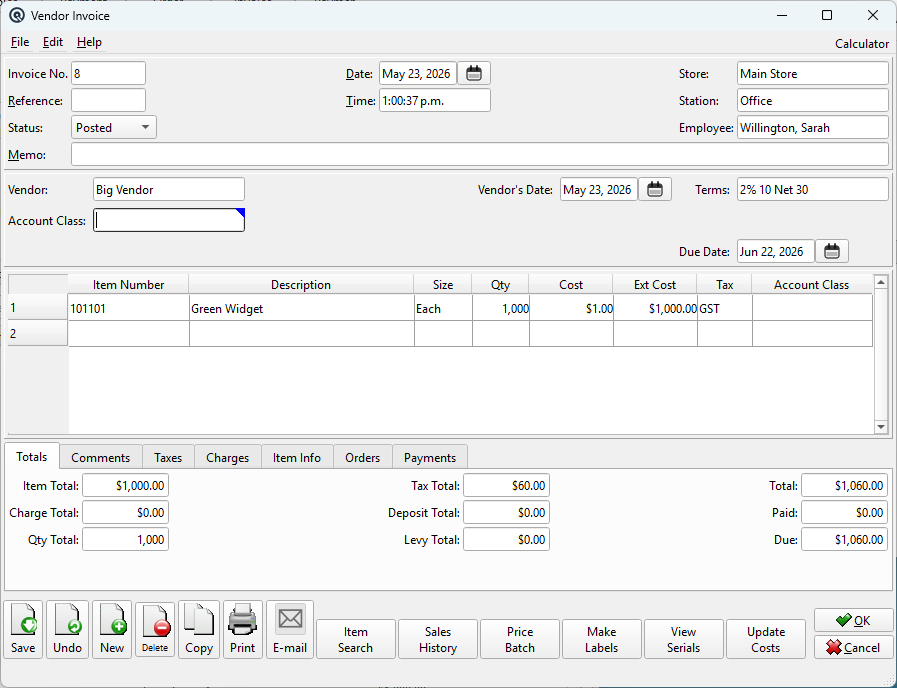
Header Fields
Invoice No.System-generated receiving document number. Uses the standard Gltx frame with Store, Date, Time, Station, and Employee fields. Sequence numbering is by store. VendorThe supplying vendor (lookup). Changing the vendor clears existing items (with confirmation), auto-fills payment terms, and recalculates item costs for the new vendor. Vendor's DateThe vendor's invoice date (from the vendor's paperwork). Used for due date calculation. Defaults to the post date. TermsPayment terms (lookup). Auto-populated from the vendor's default terms. Changing the terms recalculates the Due Date. See the Terms Master. Due DatePayment due date. Auto-calculated from the Vendor's Date and the Terms setting. Can be manually overridden. Account ClassOptional account class for header-level GL postings. Only visible when the Account Classes feature is enabled. See the Account Class Master. ReferenceReference string for cross-referencing or notes (optional). StatusTransaction status. Controls posting and visibility in lists. DatePosting date for the transaction. Defaults to today. TimeTime of posting. Auto-filled from the system clock. Work DateWork date for the transaction (may differ from posting date). ShiftShift assignment for labour or shift-based reporting. StoreStore where the transaction is posted. Defaults to current store. StationWorkstation or terminal where the transaction was entered. EmployeeEmployee who created or is responsible for the transaction. MemoFree-form memo or notes attached to the transaction. |
Item Lines
|
The main table lists items being received. Item lookup is restricted to purchasable items.
Description EditorInline editor for the line description. Double-click to open a larger multi-line editor. SizeDropdown of purchasable sizes for the item/vendor/store combination. QtyThe quantity being received. CostThe unit cost editor. Ext CostThe extended cost editor (Qty × Cost). View/Edit DescriptionDialog opened by double-clicking the description cell for editing longer text. |
Serial Number Entry
|
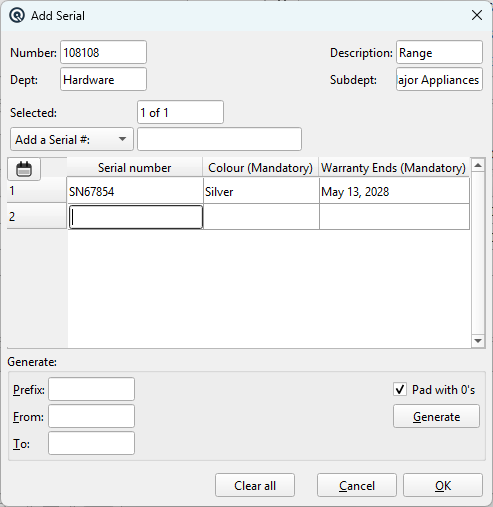
When a serial-tracked item is entered with a quantity, Quasar automatically opens the Add Serial dialog to collect serial numbers and any associated extra data. Item InfoThe top section displays the Item Number, Description, Department, and Subdepartment of the serial-tracked product, along with a counter showing which serial entry is currently being processed (e.g. “Selected: 1 of 3”). Serial Number Table
Automatic Column DisplayExtra data columns appear automatically based on the item's Extra Info tab definitions and their Mandatory setting:
For gift cards and store credits, the system automatically adds “Initial Amount” and “Current Balance” extra data fields when the item's Gift Card or Store Credit flag is enabled. These columns appear in the serial entry table, allowing the initial card value to be set during receiving. GenerateFor items like gift cards where serial numbers follow a numeric sequence, click Generate to auto-create a range of serial numbers instead of entering them individually. |
Totals Tab

|
Read-only summary of the invoice value:
|
Comments Tab

|
Free-text comment field for internal notes about this receiving document. When creating an invoice from a purchase order, the order's message can optionally be imported here. |
Taxes Tab

|
Read-only breakdown of taxes, grouped by tax code:
|
Charges Tab

|
Two side-by-side tables for additional charges: Internal Charges (left)Costs absorbed by the company (e.g. freight-in, customs duties). Allocated across item lines to increase landed inventory cost. Each charge has a Charge lookup, Amount, and Tax code. External Charges (right)Costs on the vendor's invoice but not allocated to item costs (e.g. vendor-billed shipping). Each charge has a Charge lookup and Amount. |
Item Info Tab

|
Detail panel for the currently selected item line. Updates automatically as you navigate between rows.
Received on consignment?Read-only indicator that the item was imported from a consignment. Only visible when the Consignment feature is enabled. Consignment to stock?Read-only indicator that consigned goods are being converted to owned stock. Include Tax?When checked, the line cost is treated as tax-inclusive. Include Deposit?When checked, the line cost includes deposit amounts. DepositContainer deposit amount for this line. LevyEnvironmental or other levy amount. OrderedQuantity originally ordered (from the linked purchase order). Shows 0 if not linked to an order. Batch NumberManufacturer's batch/lot number for the item. Used for traceability. Expiry DateExpiration date for perishable items. Line CostExtended base cost (before deposits/levies/charges). Internal ChargeAllocated internal charge for this line. External ChargeAllocated external charge for this line. Edit SerialsOpens the serial number assignment dialog for serial-tracked items. |
Orders Tab

|
Lists purchase orders linked to this invoice, showing Order #, Reference, Date, and Amount. AddOpens a purchase order lookup to link an existing PO to this invoice. Items from the order are imported into the item lines. RemoveUnlinks the selected purchase order from this invoice. ViewOpens the selected purchase order in the Purchase Order screen. Also available by double-clicking the order row. Import items and charges from the orderWhen adding a purchase order, choose whether to import the order's items and charges into the invoice. Default item quantity from orderWhen adding a purchase order, choose whether to default item quantities from the order. |
Payments Tab

|
Lists payments applied to this invoice, showing Type, Number, Reference, Date, Amount, Paid, and Discount columns. Alloc PaymentOpens the payment allocation dialog to apply an existing payment or cheque to this invoice. Prompts to save first. After allocation, the Paid and Due amounts in the Totals tab update automatically. Make ClaimCreates a vendor claim against this invoice. Opens the Claim screen pre-populated with this invoice's details. Create PaymentCreates a new payment (cheque) for this invoice directly from this screen. Clear PaymentsRemoves all payment allocations from this invoice, resetting the Paid amount to zero. |
Action Buttons
Item SearchOpens a search dialog to find items within the invoice by Item Number or Description (case-insensitive, partial match). Navigates to the matching row. Sales HistoryOpens the Sales History window pre-loaded with the currently selected item and store. Stays open and updates as you navigate between items. Price BatchCreates a new Price Batch pre-loaded with items from this invoice. Use this to update selling prices based on new vendor costs. Prompts to save first. Make LabelsCreates a Label Batch from the received items. Only items with label type set to "Item Labels" are included. Quantities are automatically converted from purchase size to sell size. A confirmation message shows the created batch number. View SerialsOpens a dialog showing all serial numbers assigned across all invoice lines. Serial assignments can be reviewed and modified. Update CostsCompares the invoice's unit costs against the item master's vendor cost records. If any costs differ, opens a Cost Update dialog listing old vs. new costs. Approved updates are written to the item master. Requires ItemMaster Update security permission. |
Standard Buttons
SaveSaves the invoice, creating the AP entry. Optionally prompts to print. NextSaves the current invoice and opens a blank new one. Prints the receiving document using the Emails the receiving document as a PDF to the vendor. CopyDuplicates the invoice with a new number, today's date, zero ordered quantities, and cleared serial numbers. CloseCloses the screen. |
Menu: Recurring
|
Available from the File menu. Opens the Recurring transaction dialog to set up this invoice as a recurring entry (e.g. monthly rent or service invoices). |
Related Screens
| Receive List | Purchase Order | Vendor Master | Pay Bills |
| Quasar Accounting 7.1 • © Linux Canada Inc. • Table of Contents |