
Setup & Configuration
Data Import
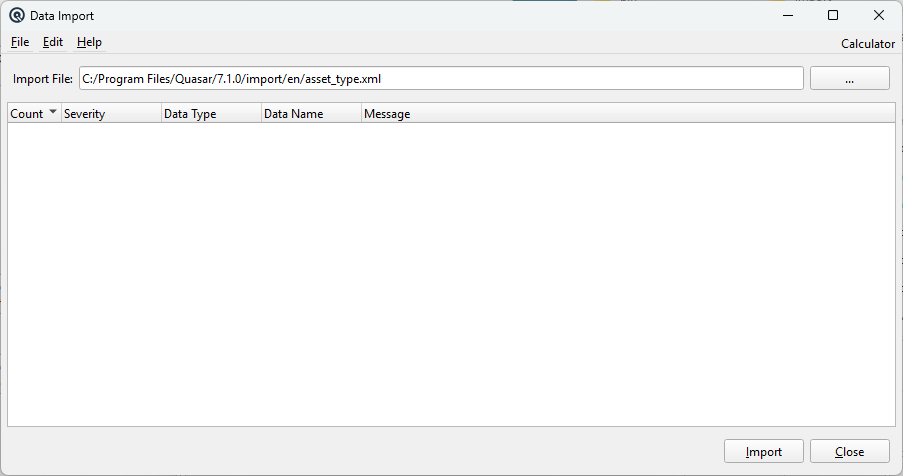
The Data Import screen is the primary tool for loading bulk data into Quasar from XML export files. It can import virtually every Quasar data type — accounts, items, customers, vendors, taxes, employees, departments, sub-departments, groups, tenders, stores, stations, security types, and more. This is the standard mechanism for migrating data between Quasar installations or for restoring from XML exports. For a complete walkthrough, see the Quasar Guide. Access from File › Import.
Fields
Import FileUse the ... browse button or press F9 to select a file. Path to the XML file to import. Use the ... browse button or press F9 to select a file. The file filter defaults to *.xml. Quasar remembers the last used import directory. |
Import Log
|
As the import runs, each record processed is logged in the list view with status information:
A progress bar appears during import showing current / total records. |
Supported Data Types
|
The XML import supports all major Quasar data objects including: • Master Data — Accounts, Departments, Sub-departments, Items, Customers, Vendors, Employees, Stations, Stores, Taxes, Tenders, Terms, Groups, Security Types, Locations The XML format matches the structure produced by Quasar's File › Export function, making it ideal for round-trip data migration. |
Actions
ImportValidates the file path and begins the import. Displays a completion message with the error count. CloseCloses the import screen. |
Security
|
Access to the Data Import screen is controlled by security permissions. If the current user does not have View permission on ImportScreen, an “Access denied” error is shown and the screen closes automatically. |
Related Screens
| Item CSV Import | Customer CSV Import | Item History Import |
| Quasar Accounting 7.1 • © Linux Canada Inc. • Table of Contents |