
Pricing & Labels
Linked Items
The Linked Items screen is a real-time lookup tool that shows all items related to a selected item, organized by Link Type (Substitute, Accessory, Upsell, etc.). It displays each linked item's current price and on-hand quantity so staff can instantly see what is available. Links are defined on the Item Master Links tab. Access from Inventory › Linked Items.
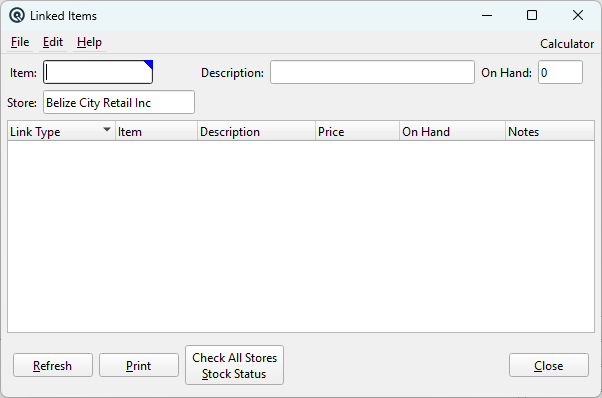
Selection Fields
ItemThe primary item to look up. Scan or type an item number. Only sold items are shown in the lookup. When selected, the Description and On Hand fields are auto-populated and the linked items list refreshes. DescriptionRead-only. Displays the selected item's description. On HandRead-only. The current on-hand quantity of the selected item at the chosen store. This lets staff immediately see if the primary item itself is in stock before looking at alternatives. StoreThe store used for price and on-hand lookups. Defaults to the current store. Changing the store refreshes all prices and quantities to reflect the new location. |
Linked Items List
|
The list shows every item linked to the selected item. All columns are sortable by clicking the header. Columns: Link Type — The relationship category (e.g., Substitute, Accessory, Upsell). Defined on the Link Type Master. |
Interaction
|
• Click a row — If a Stock Status window is open, the Stock Status automatically updates to show the clicked item's stock across all stores. |
Action Buttons
RefreshReloads the linked items list from the database. Use after making changes to links on the Item Master. Generates a printable report of the linked items list, including store and item context in the header. Check All Stores Stock StatusOpens a Stock Status window for the currently highlighted linked item, showing its on-hand quantity across all stores. As you click different rows in the linked items list, the Stock Status window updates to follow your selection. This is the fastest way to find which store has a substitute or accessory in stock. CloseCloses the Linked Items window. |
Typical Workflow
|
Scenario: A customer asks for an item that is out of stock. 1. Open Linked Items and scan the requested item. |
Related Screens
| Link Type List | Link Type Master | Item Master | Stock Status |
| Quasar Accounting 7.1 • © Linux Canada Inc. • Table of Contents |